Regenerated from
@manual-tagged Playwright tests on 2026-04-28T22:25:03.714Z. Do not edit by hand — every change belongs in a test.
Search and filter the user list
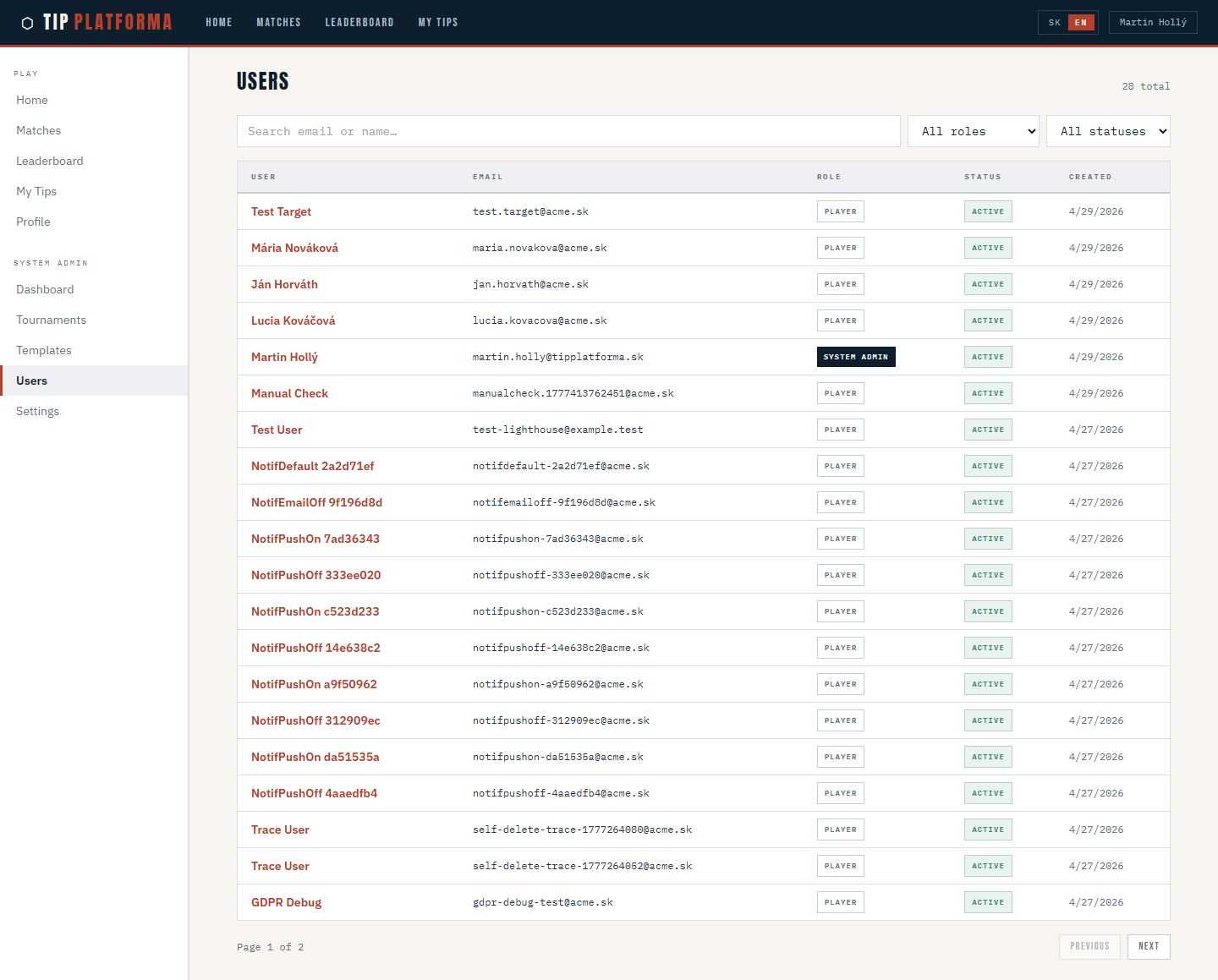
- Open Admin > Users from the sidebar
Klikni pre zvacsenie
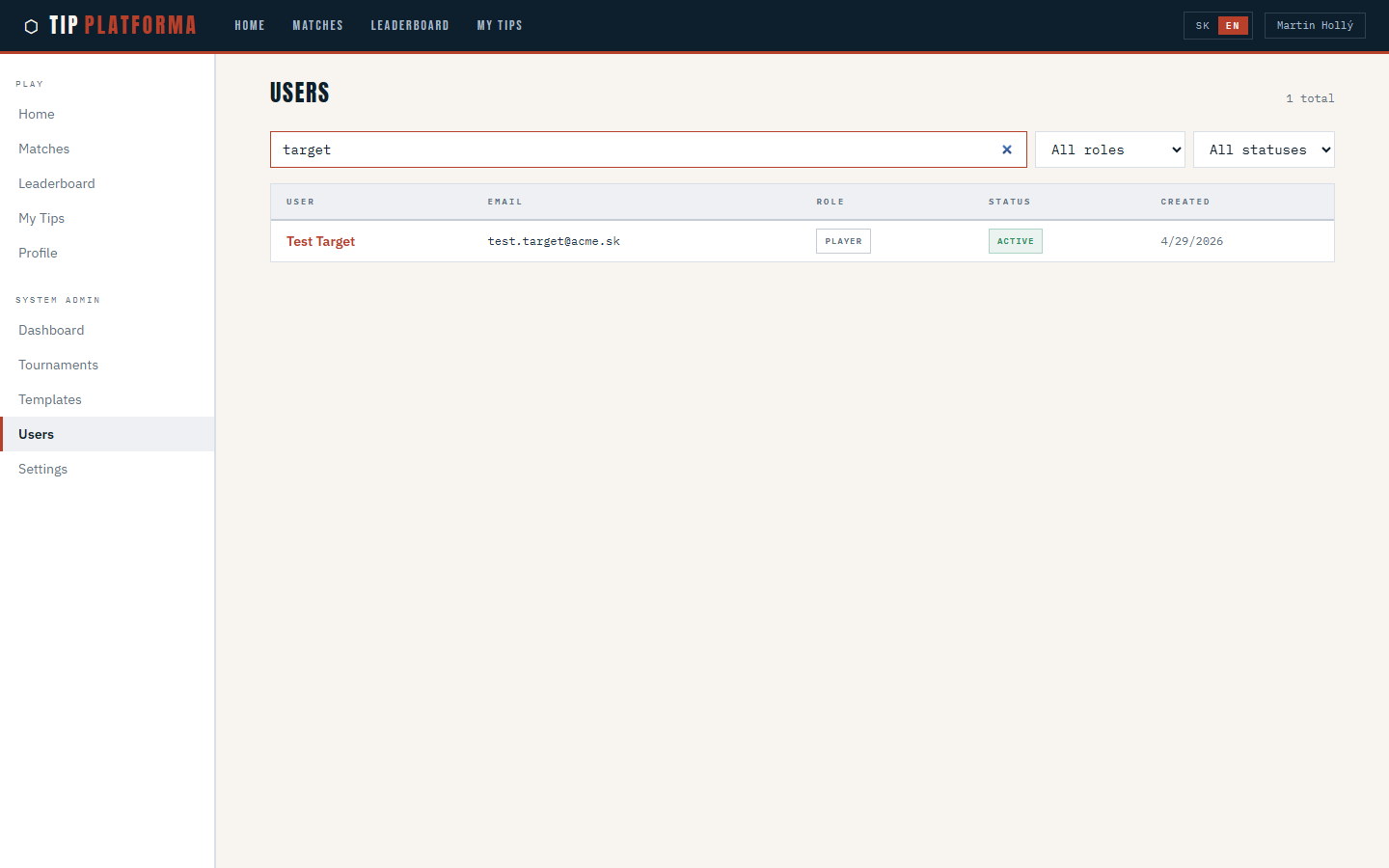
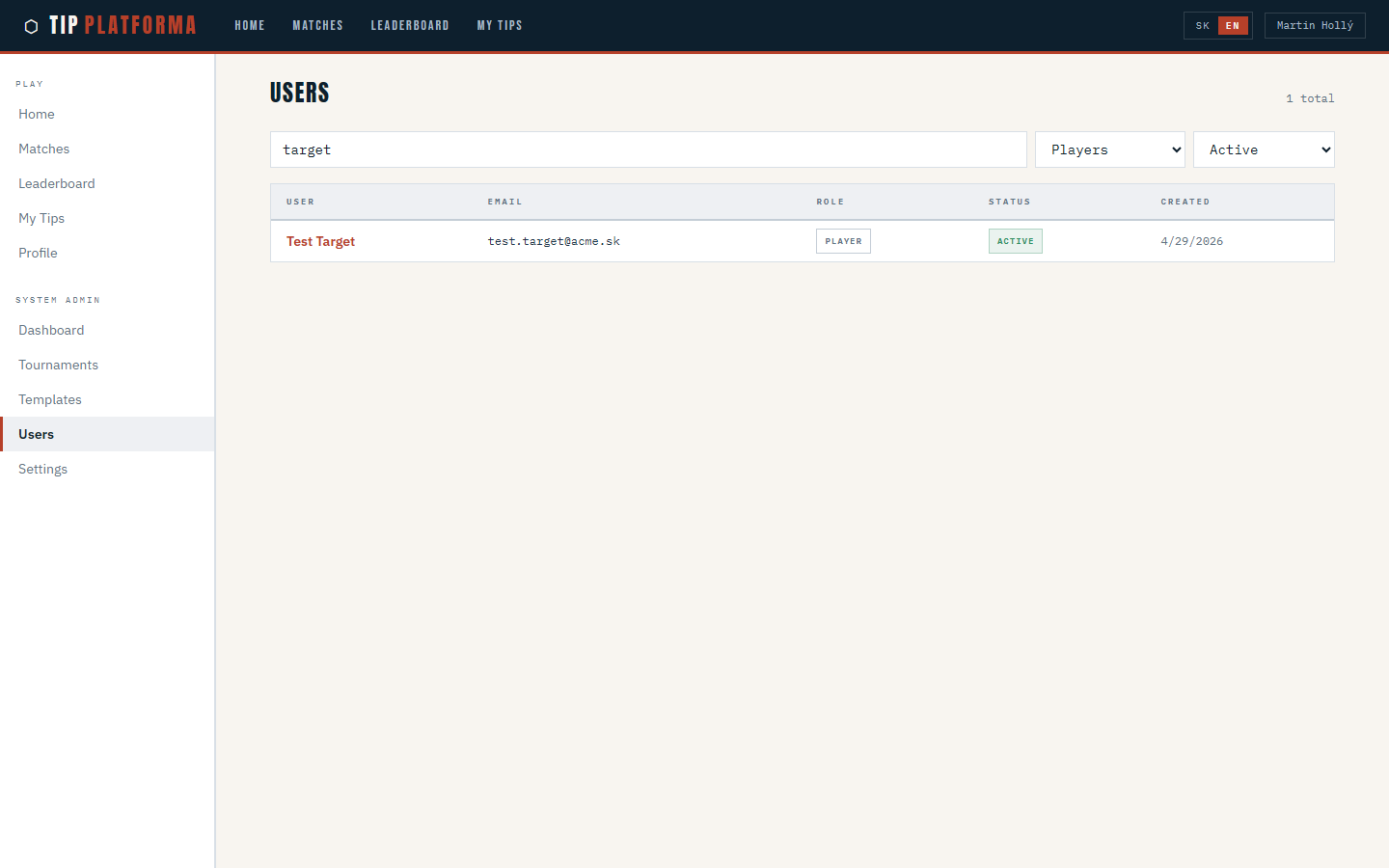
- Type part of a display name into the search field
Klikni pre zvacsenie
- Clear the search so the full roster is visible again
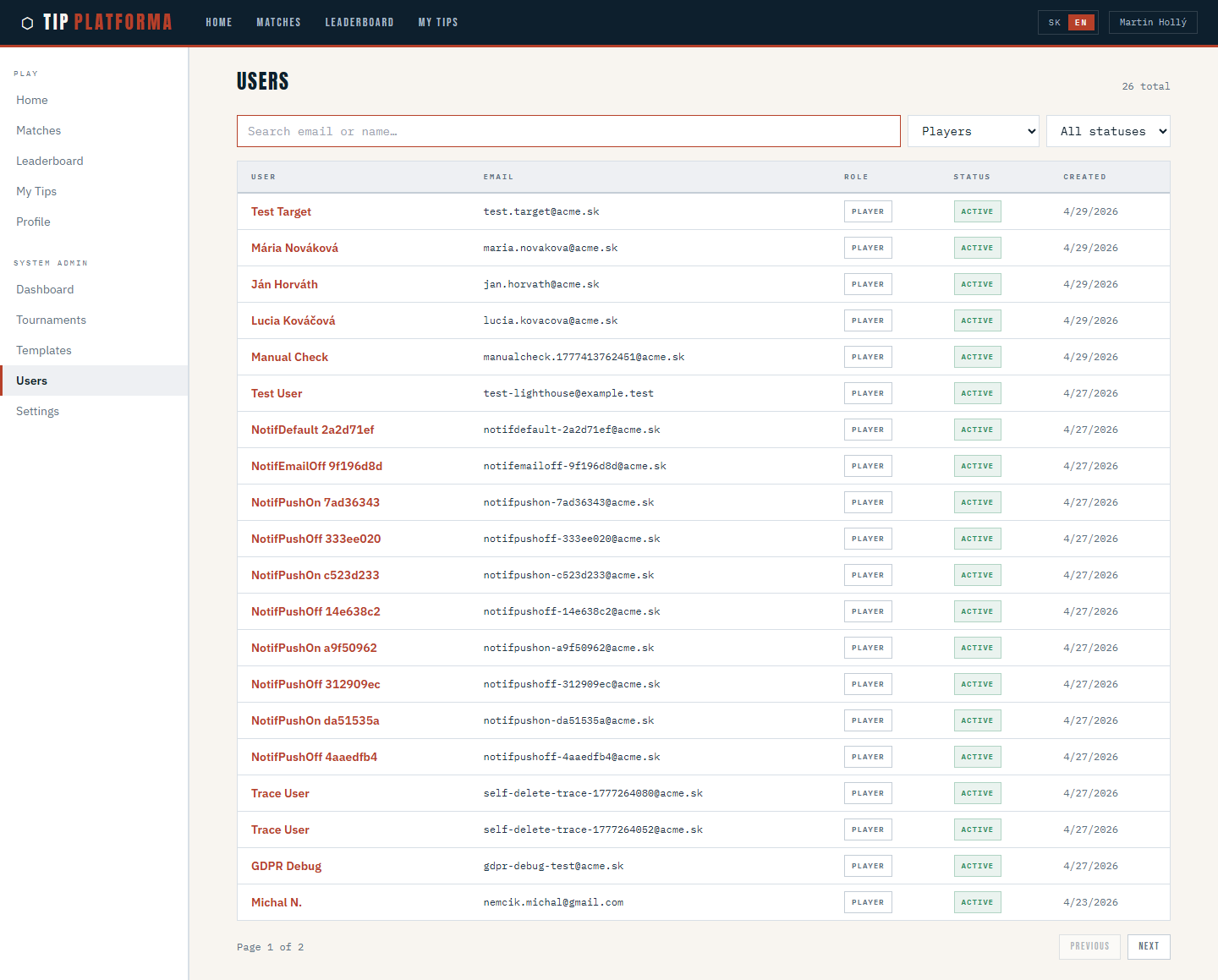
- Narrow the role filter to Players
Klikni pre zvacsenie
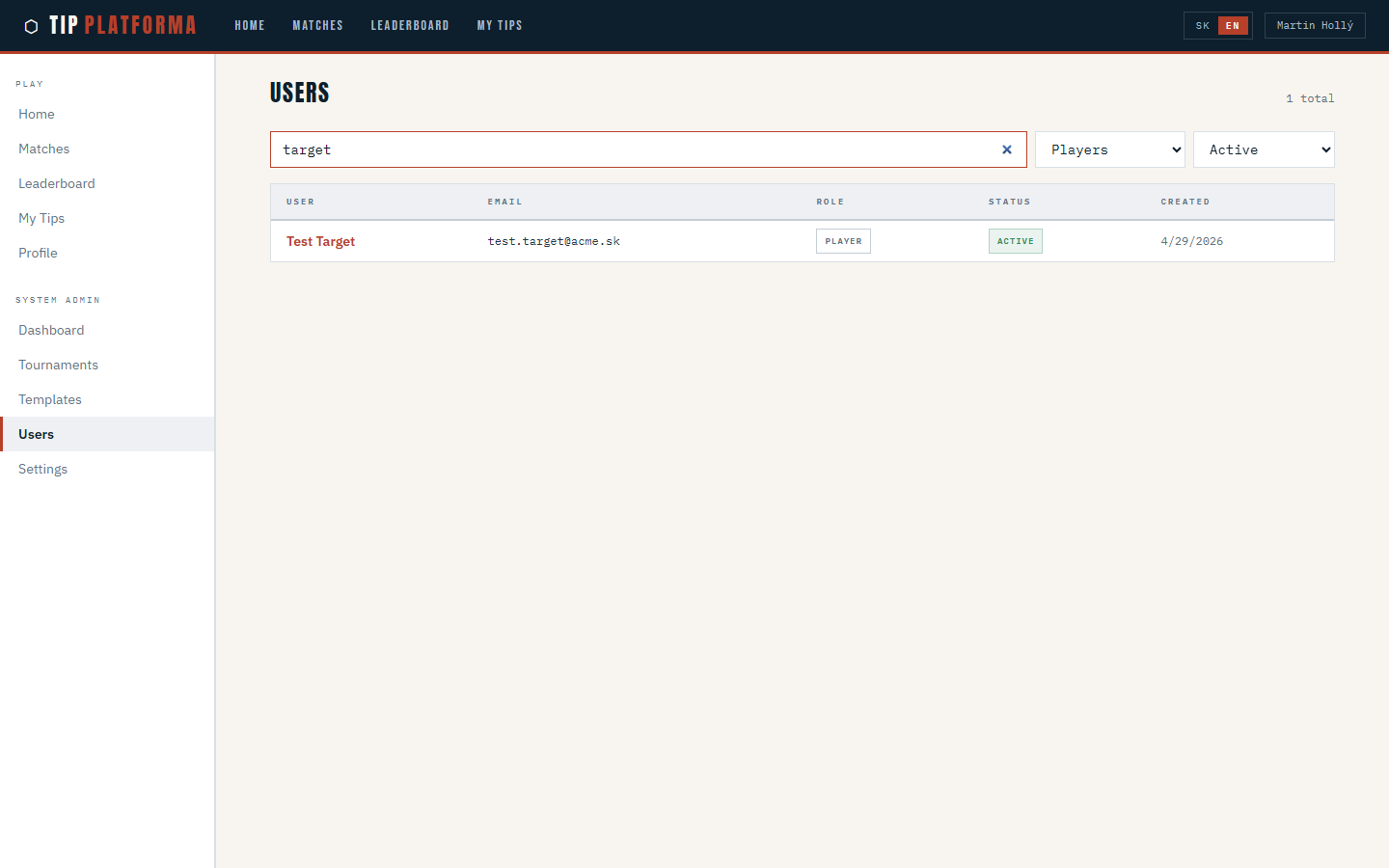
- Narrow the status filter to Active
- Confirm the table reflects every filter together
Klikni pre zvacsenie
- Copy the page URL to confirm your filters are preserved
Klikni pre zvacsenie
Promote a player to system admin
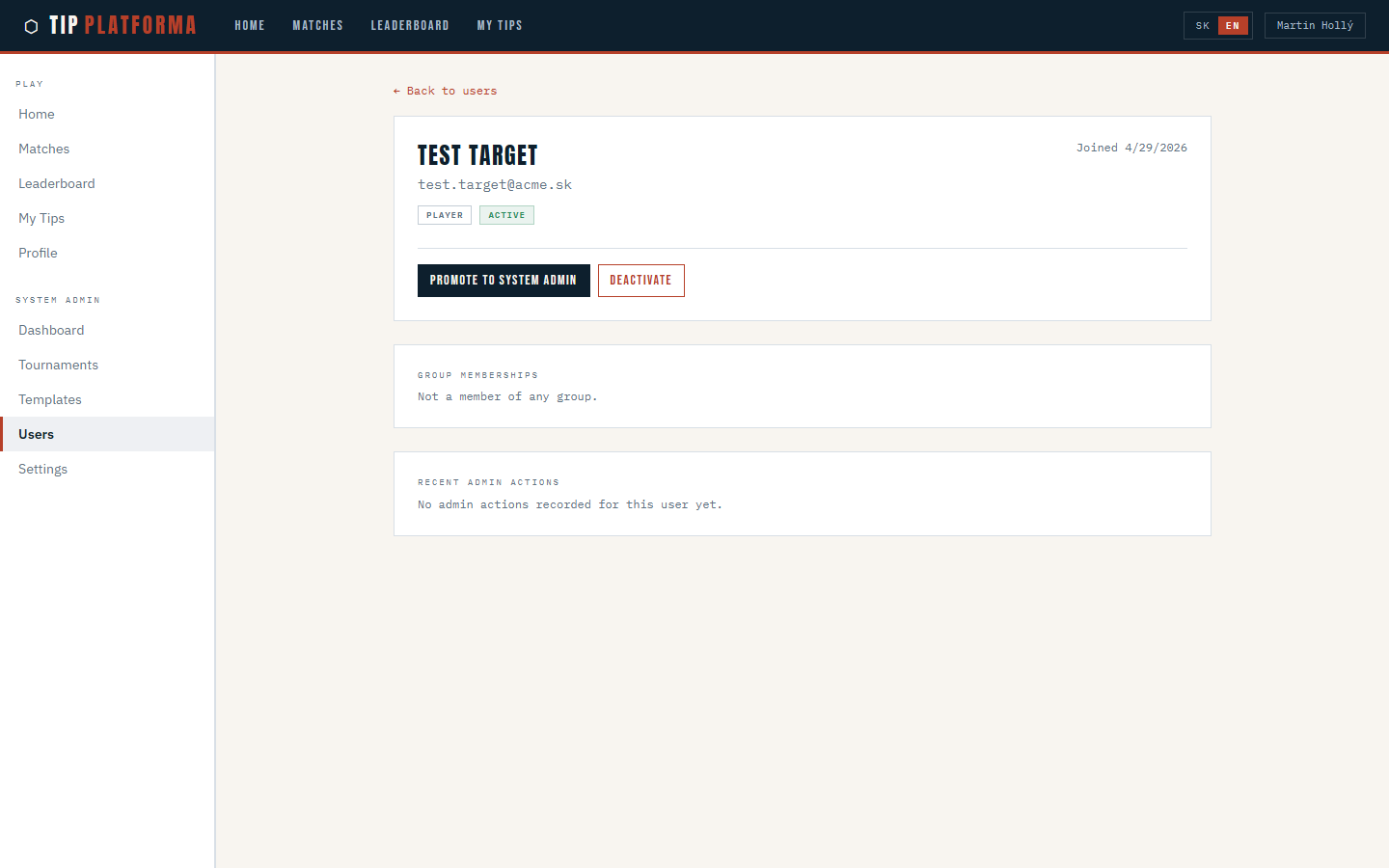
- From Admin > Users, search for the target and open their detail page
- Read the profile block — name, email, role, status, join date
Klikni pre zvacsenie
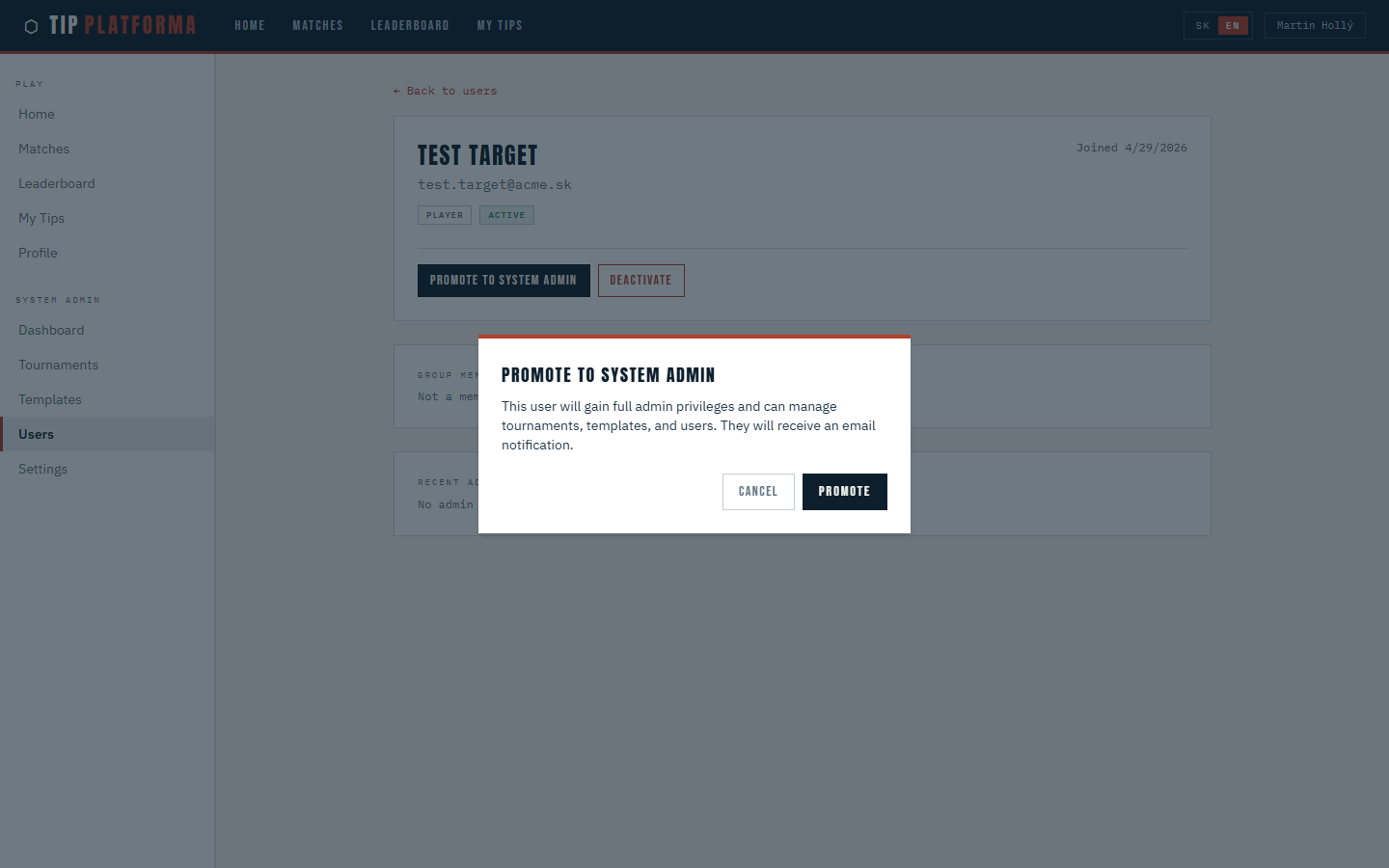
- Trigger Promote to system admin
Klikni pre zvacsenie
- Confirm the informational dialog
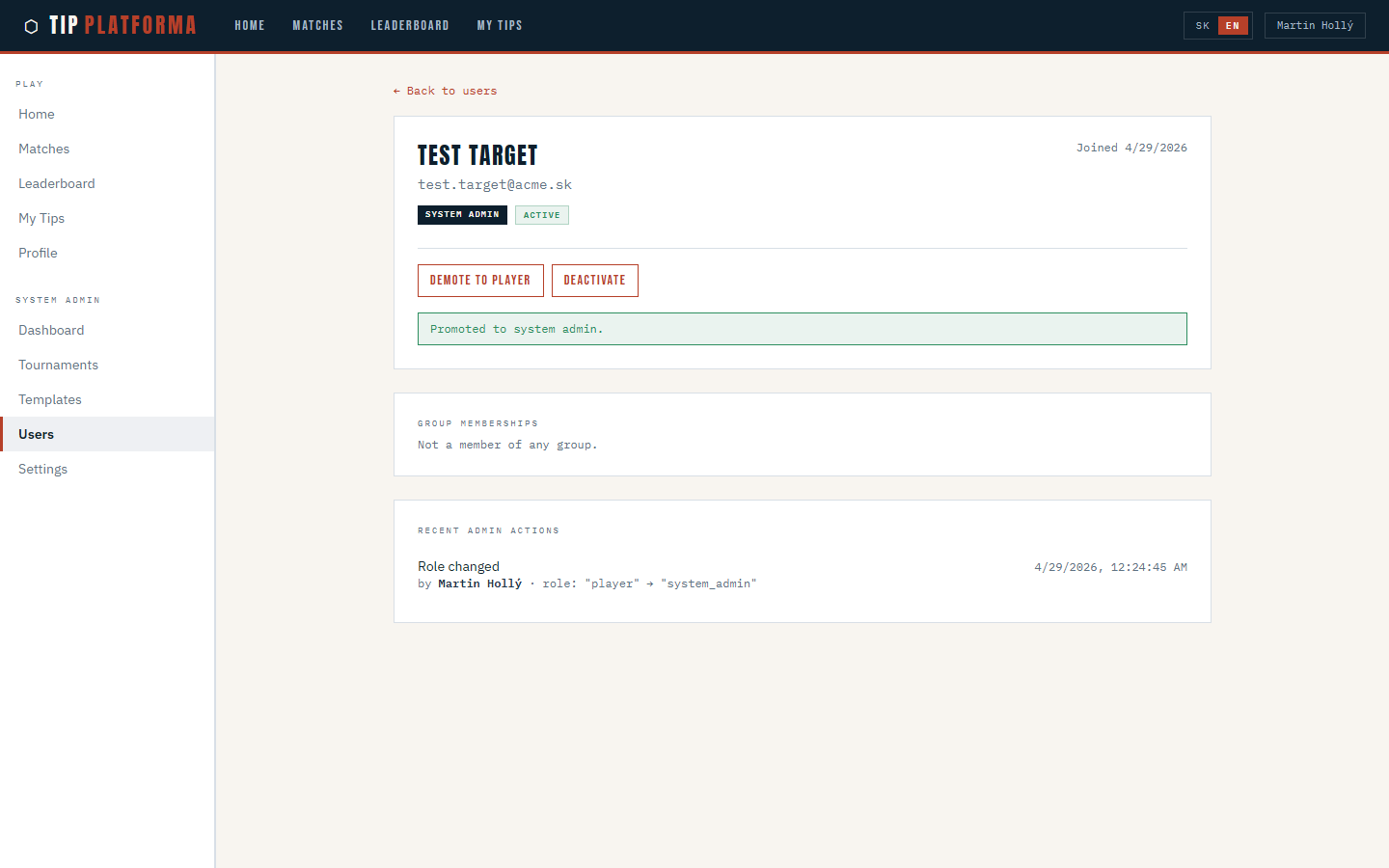
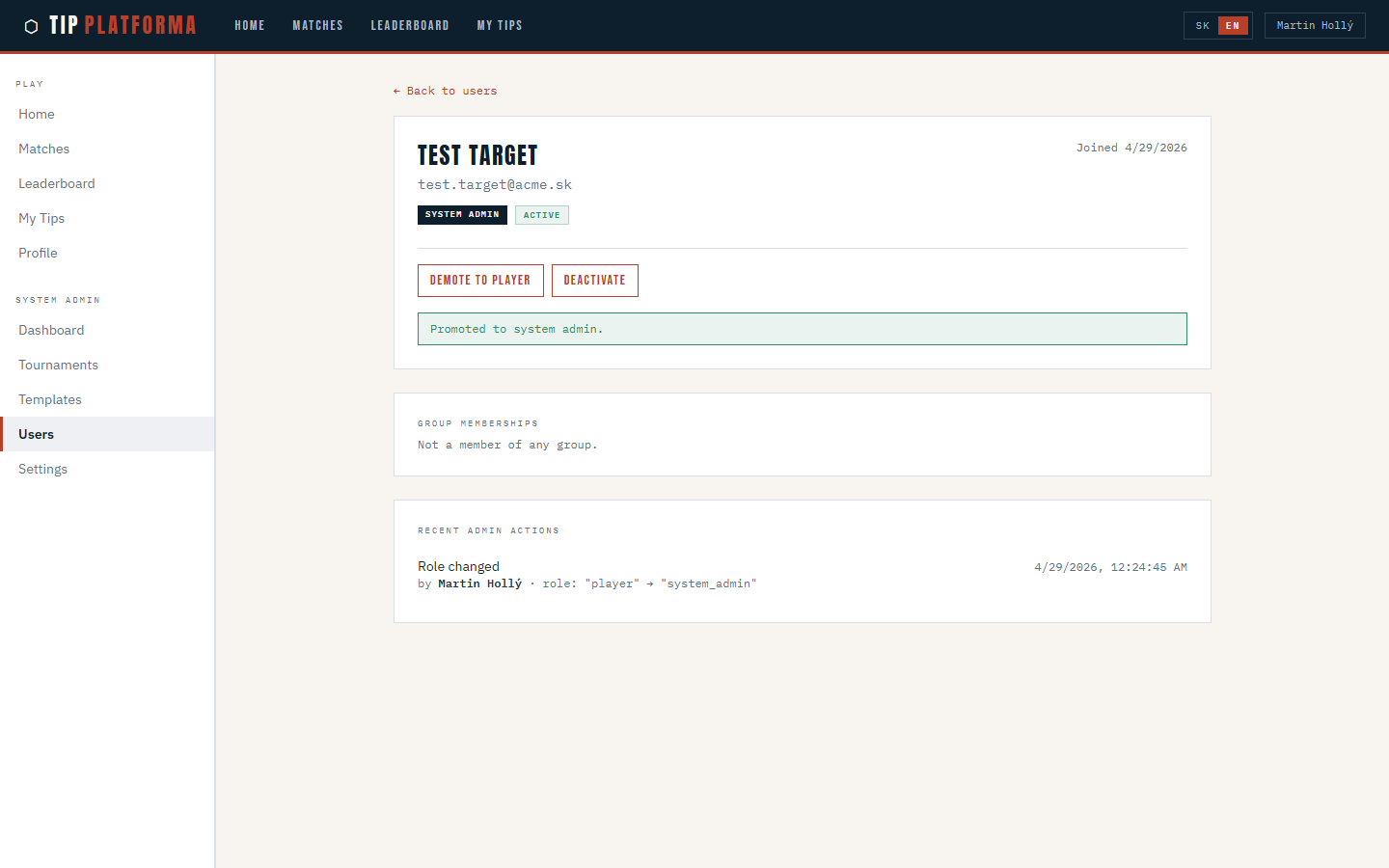
- See the success banner confirming the promotion
Klikni pre zvacsenie
- Check the Recent admin actions list for the new promotion entry
Klikni pre zvacsenie
Demote a system admin back to player
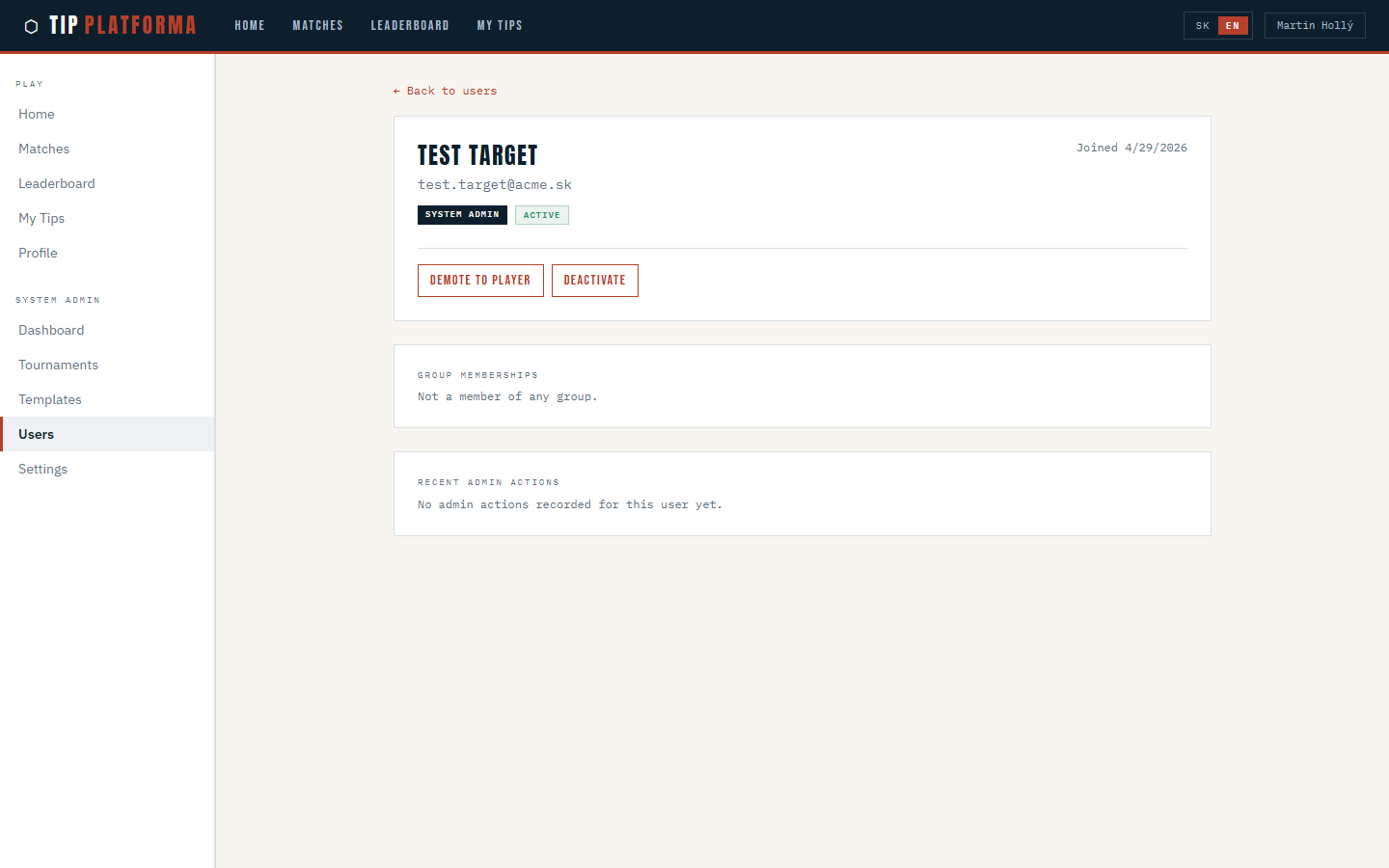
- From Admin > Users, filter by role System admins and open the target
Klikni pre zvacsenie
- Trigger Demote to player
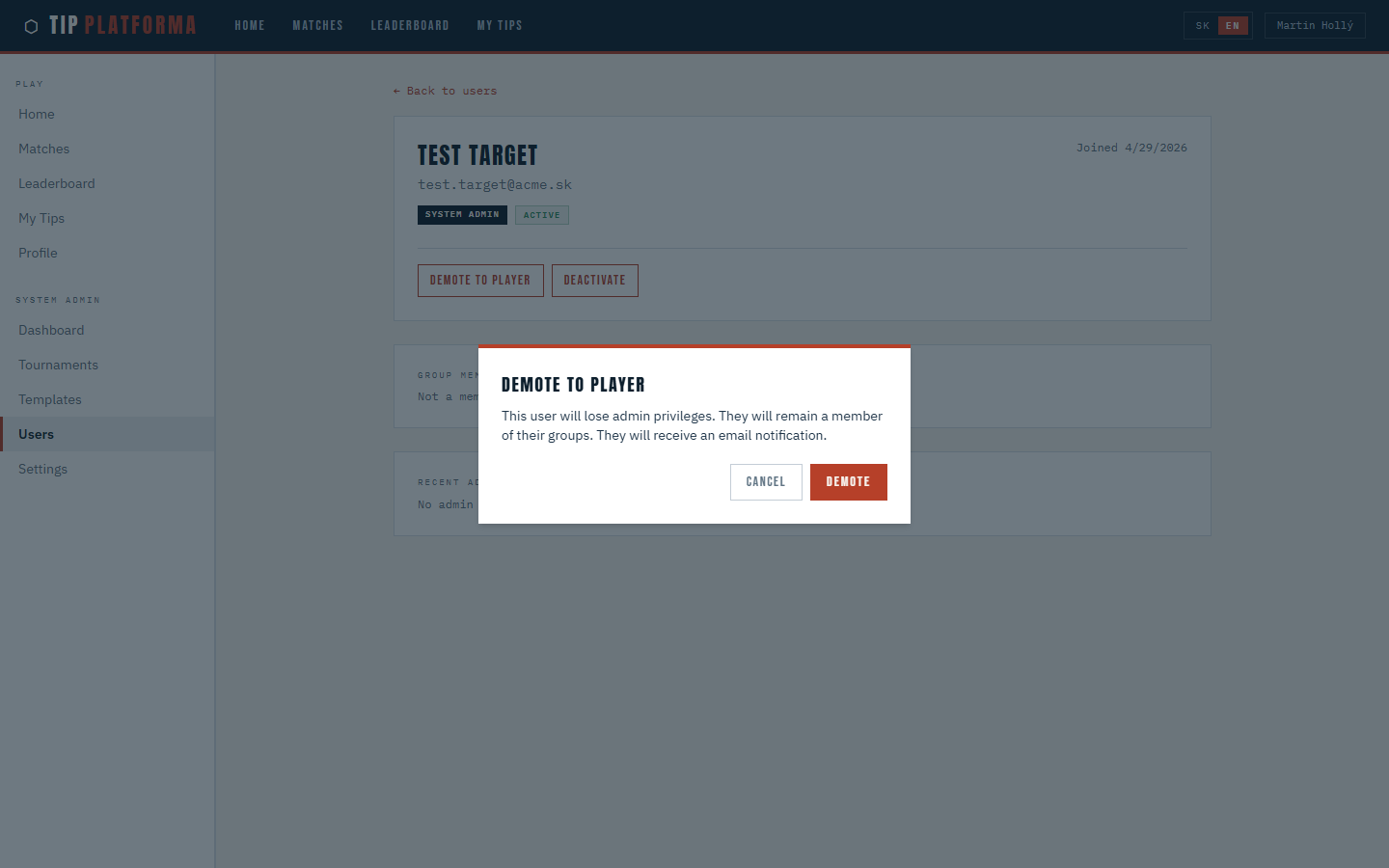
- Read the red confirmation dialog — this is a destructive action
Klikni pre zvacsenie
- Confirm the demotion
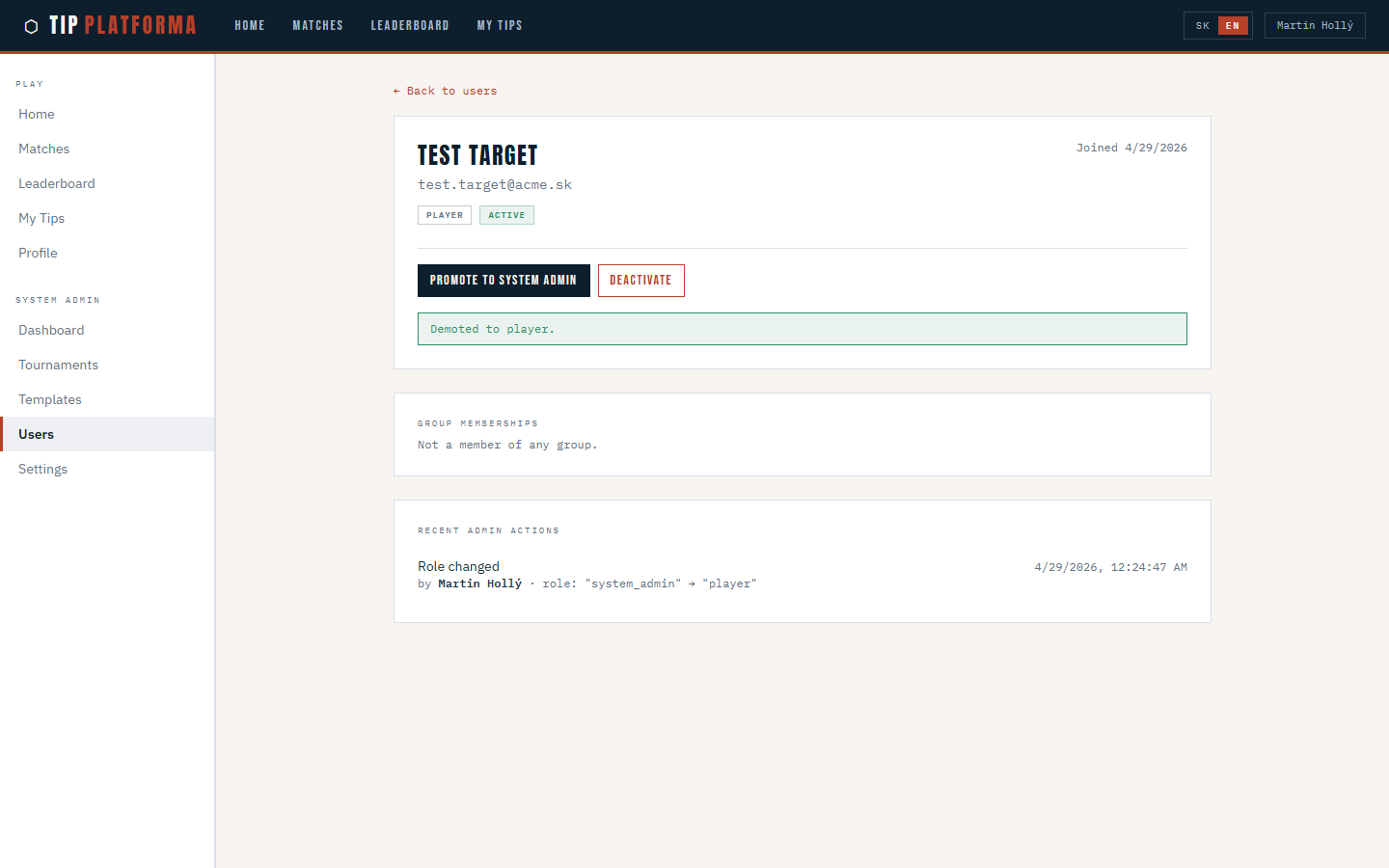
- See the success banner and the role badge flip back to Player
Klikni pre zvacsenie
- Check the Recent admin actions entry for the demotion
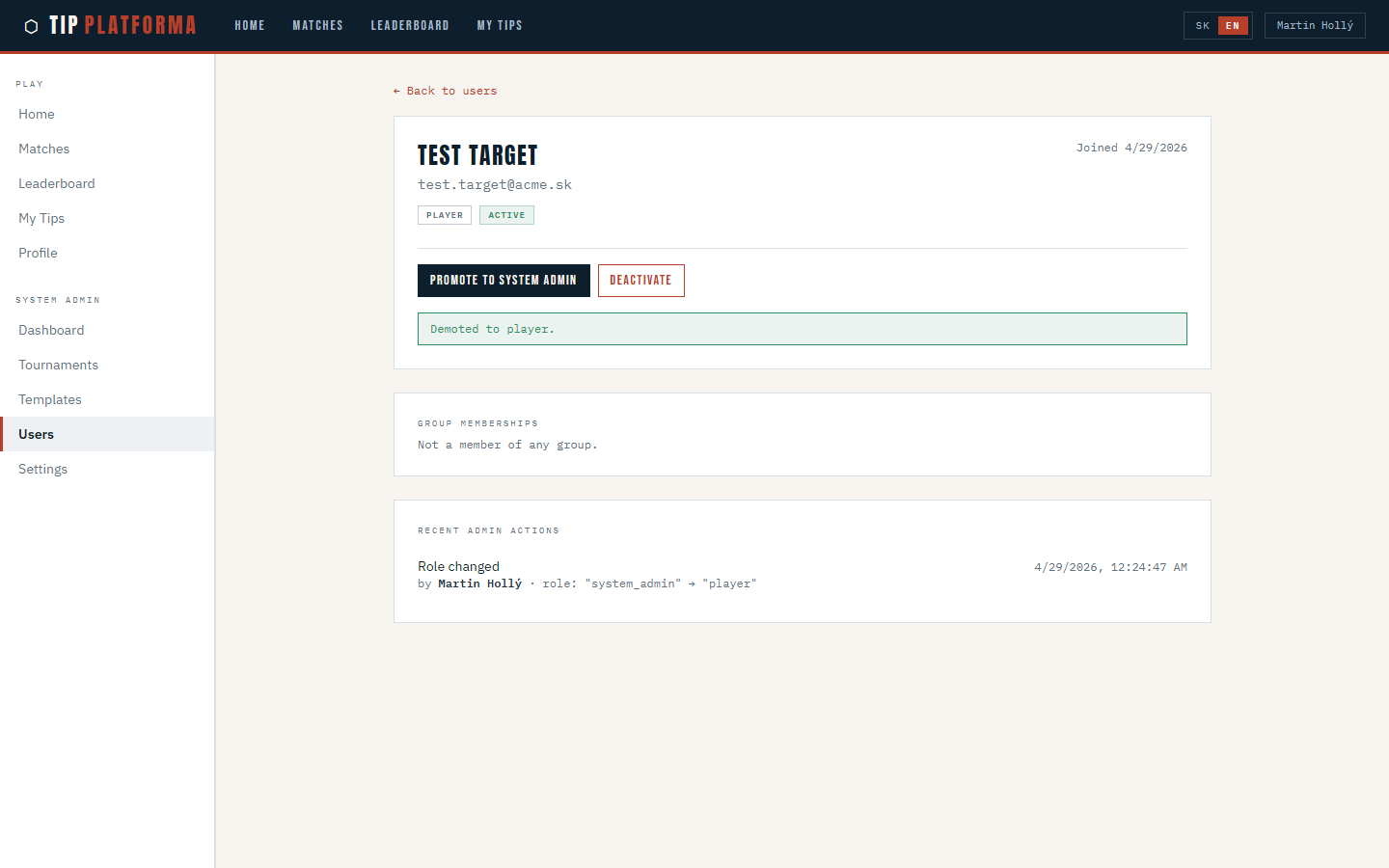
Klikni pre zvacsenie
Deactivate a user account
- From Admin > Users, open the target user's detail page
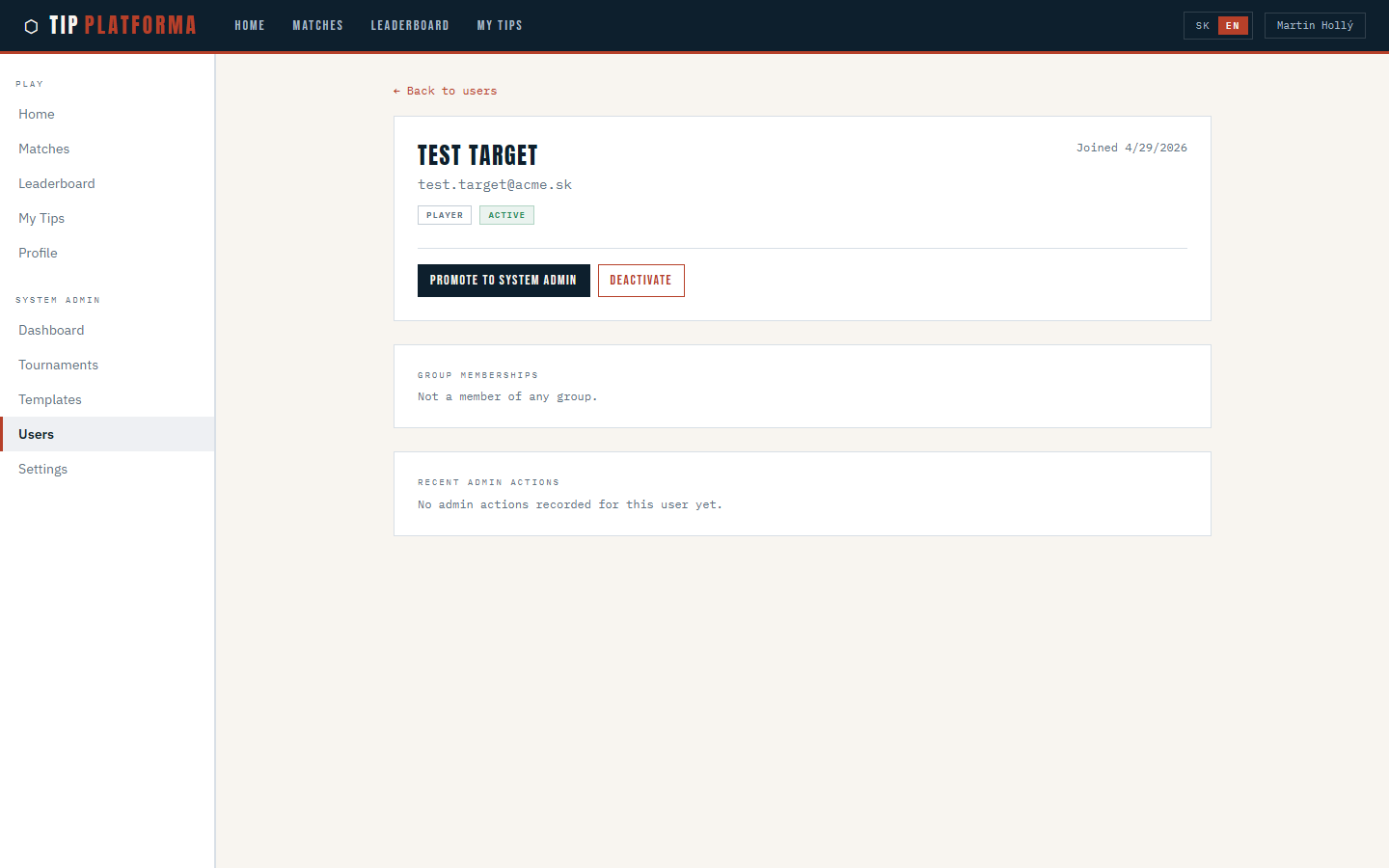
Klikni pre zvacsenie
- Trigger Deactivate
- Read the red confirmation dialog — it calls out session revocation and email
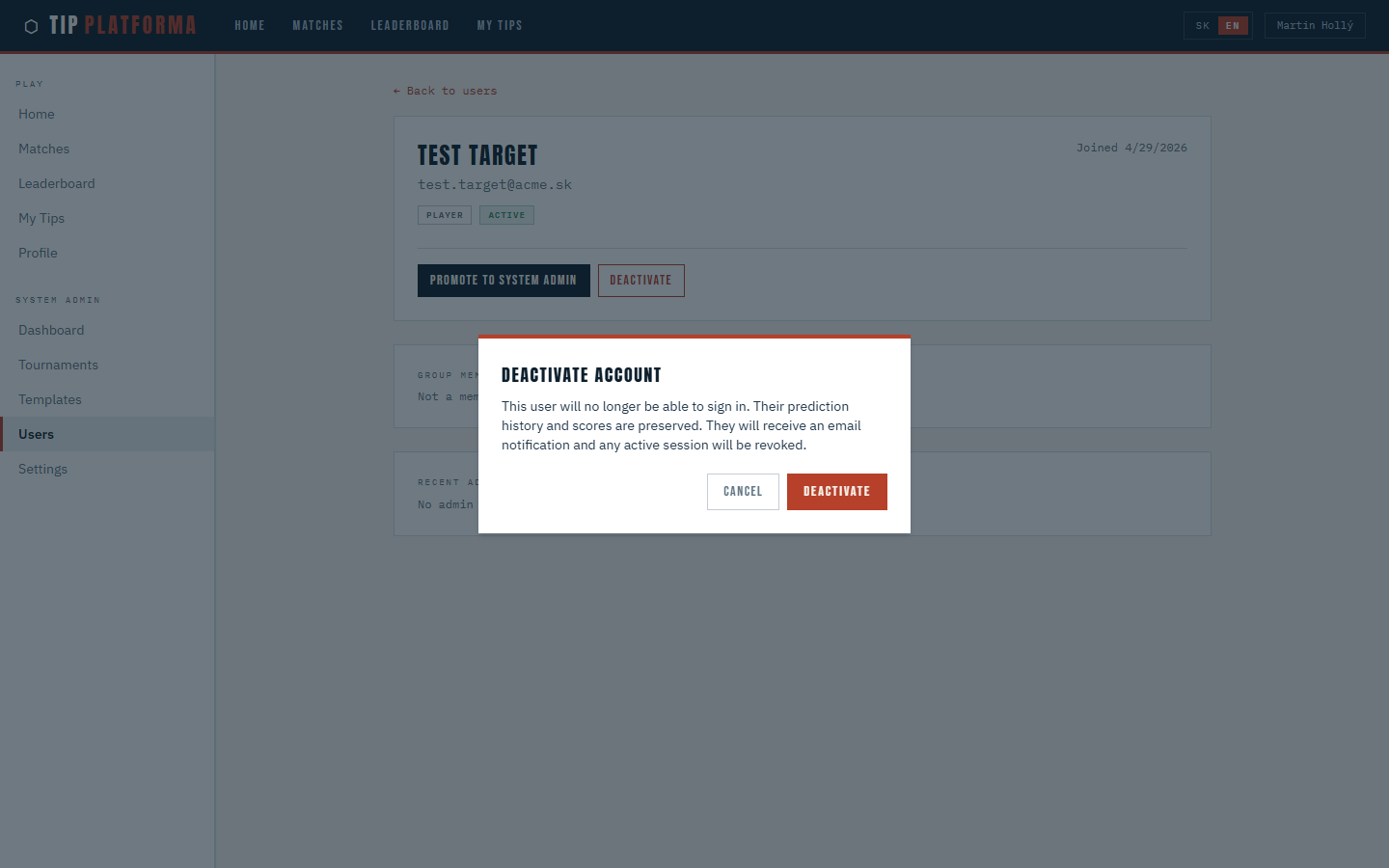
Klikni pre zvacsenie
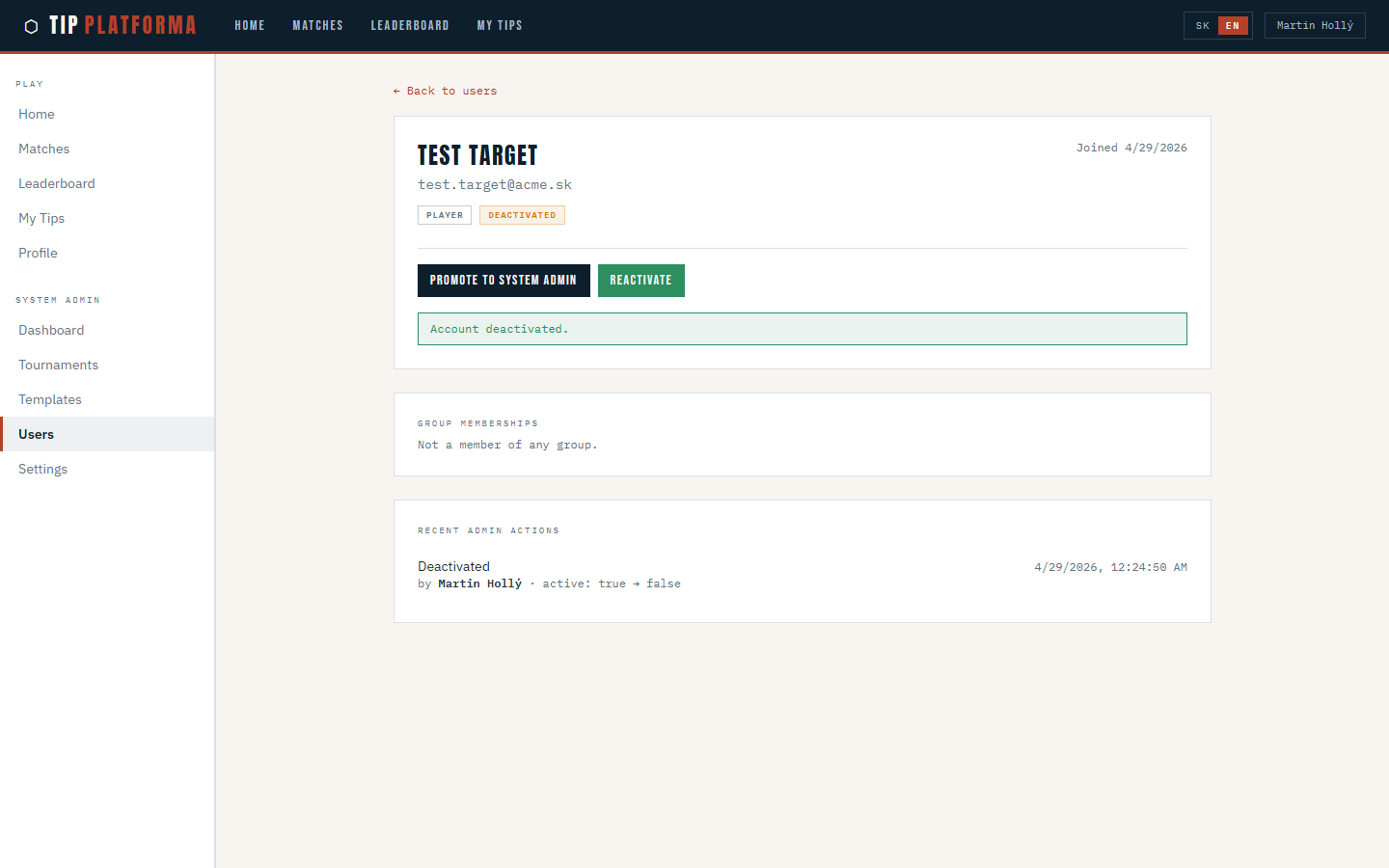
- Confirm the deactivation
- See the success banner and the status badge flip to Deactivated
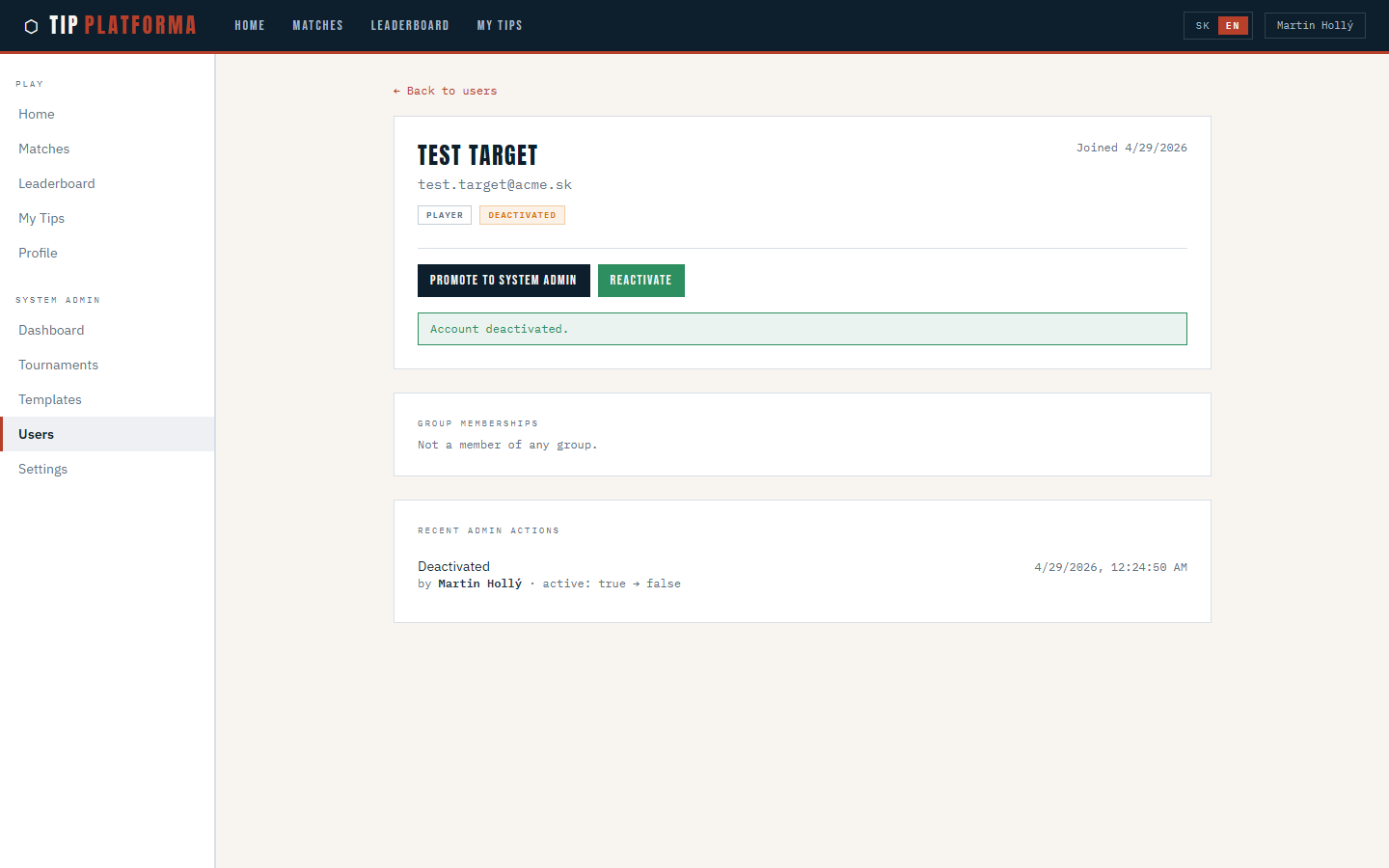
Klikni pre zvacsenie
- Check the Recent admin actions entry
Klikni pre zvacsenie
Reactivate a deactivated account
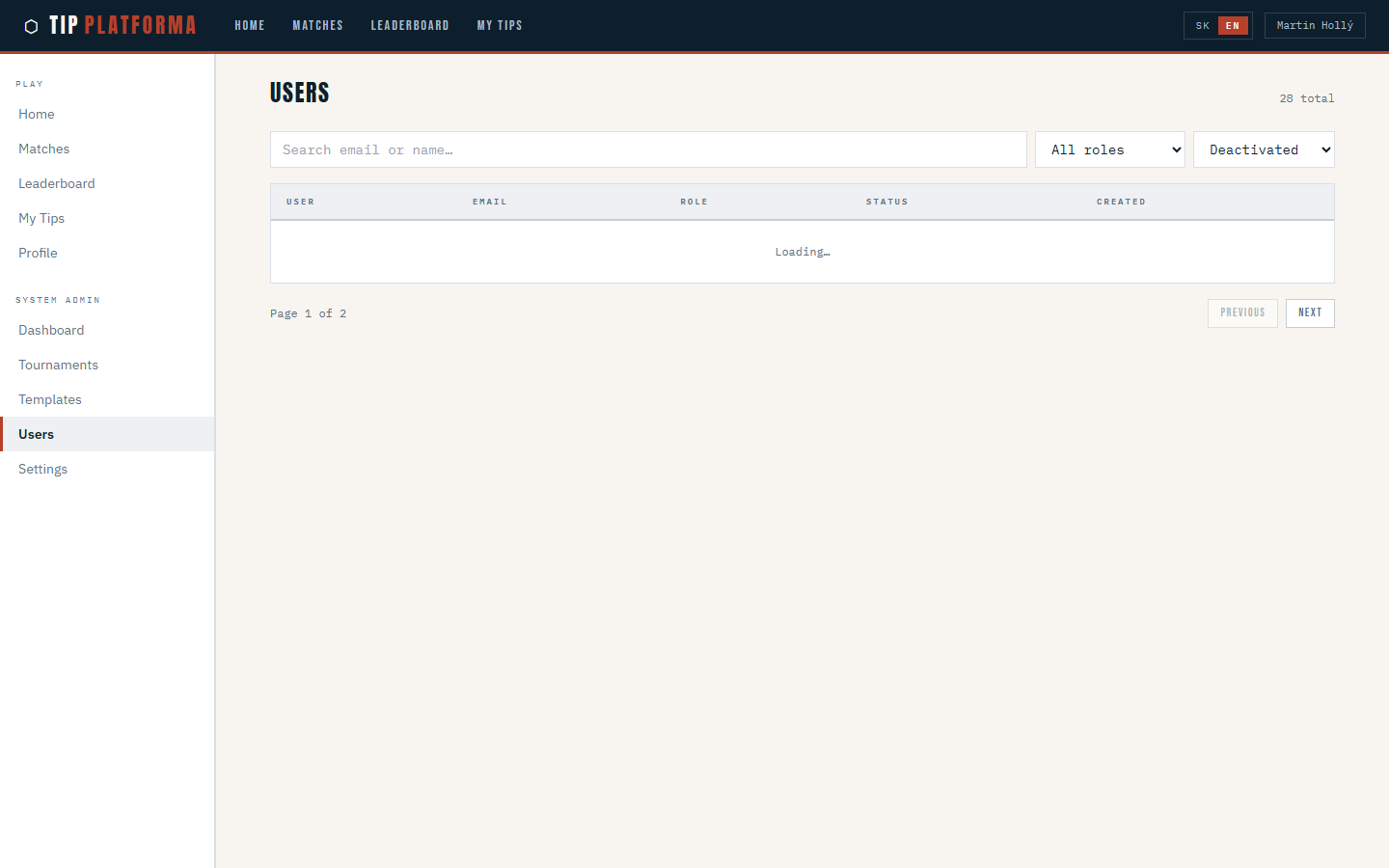
- From Admin > Users, narrow the status filter to Deactivated and open the target
Klikni pre zvacsenie
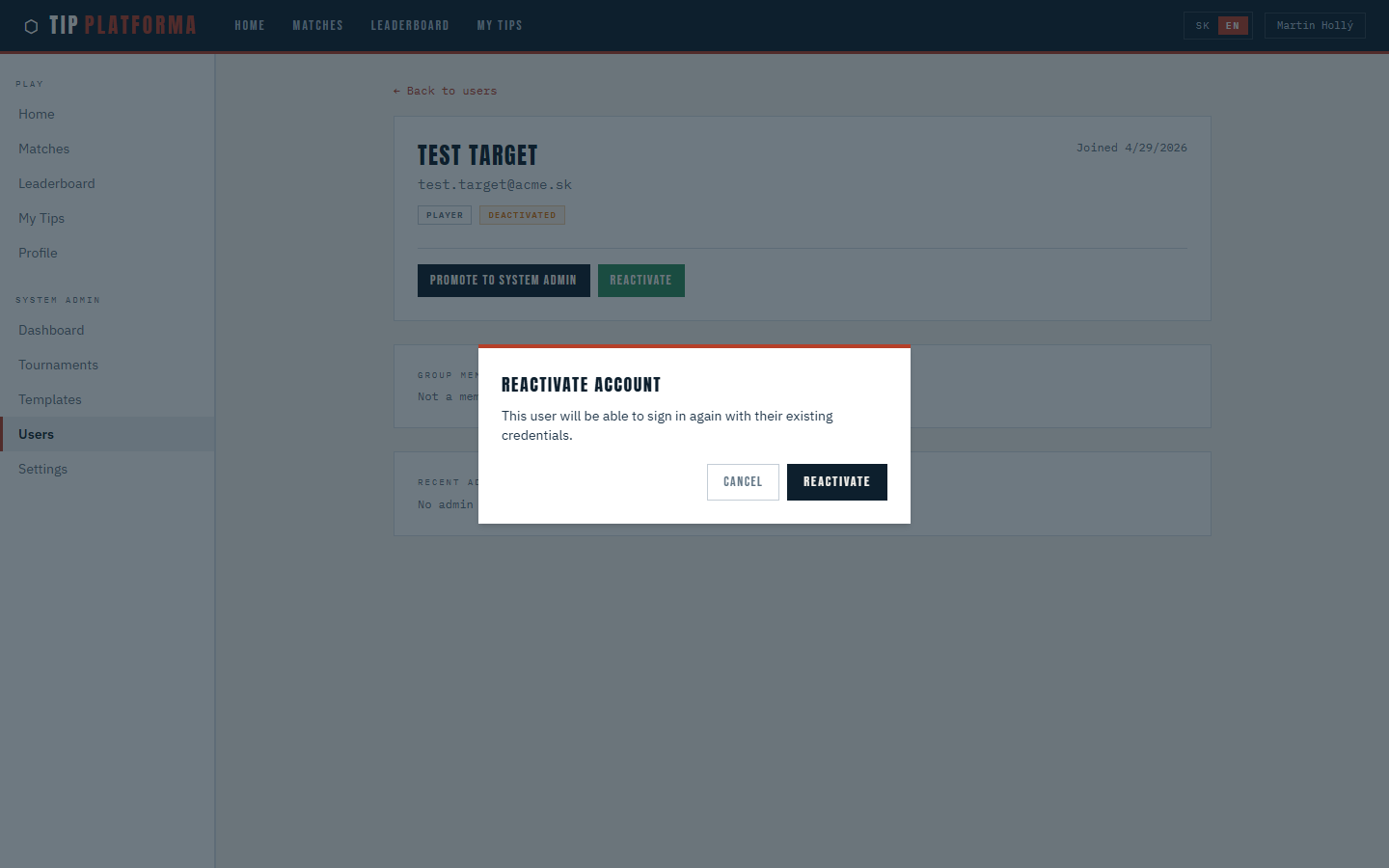
- Trigger Reactivate
- Confirm the informational dialog
Klikni pre zvacsenie
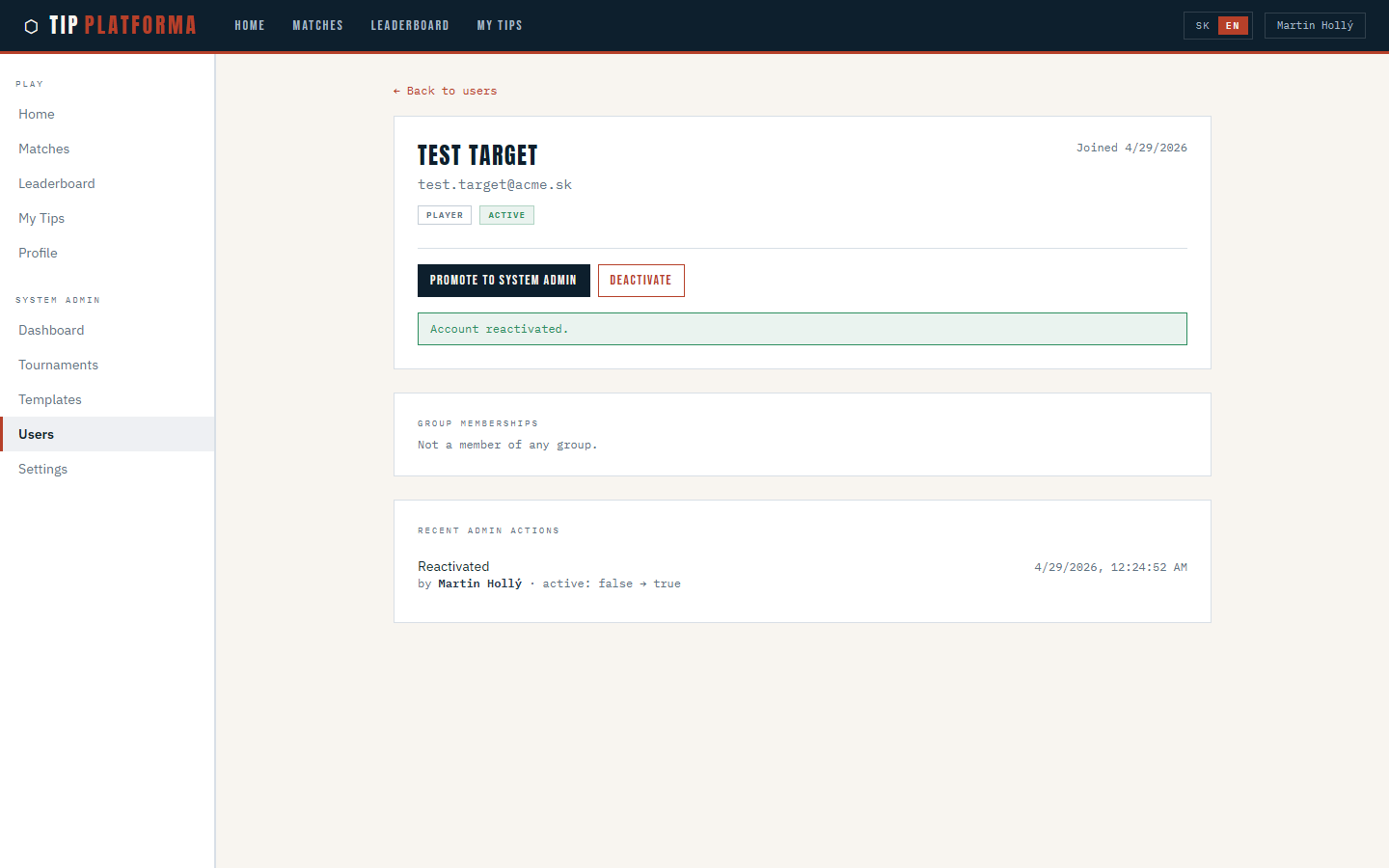
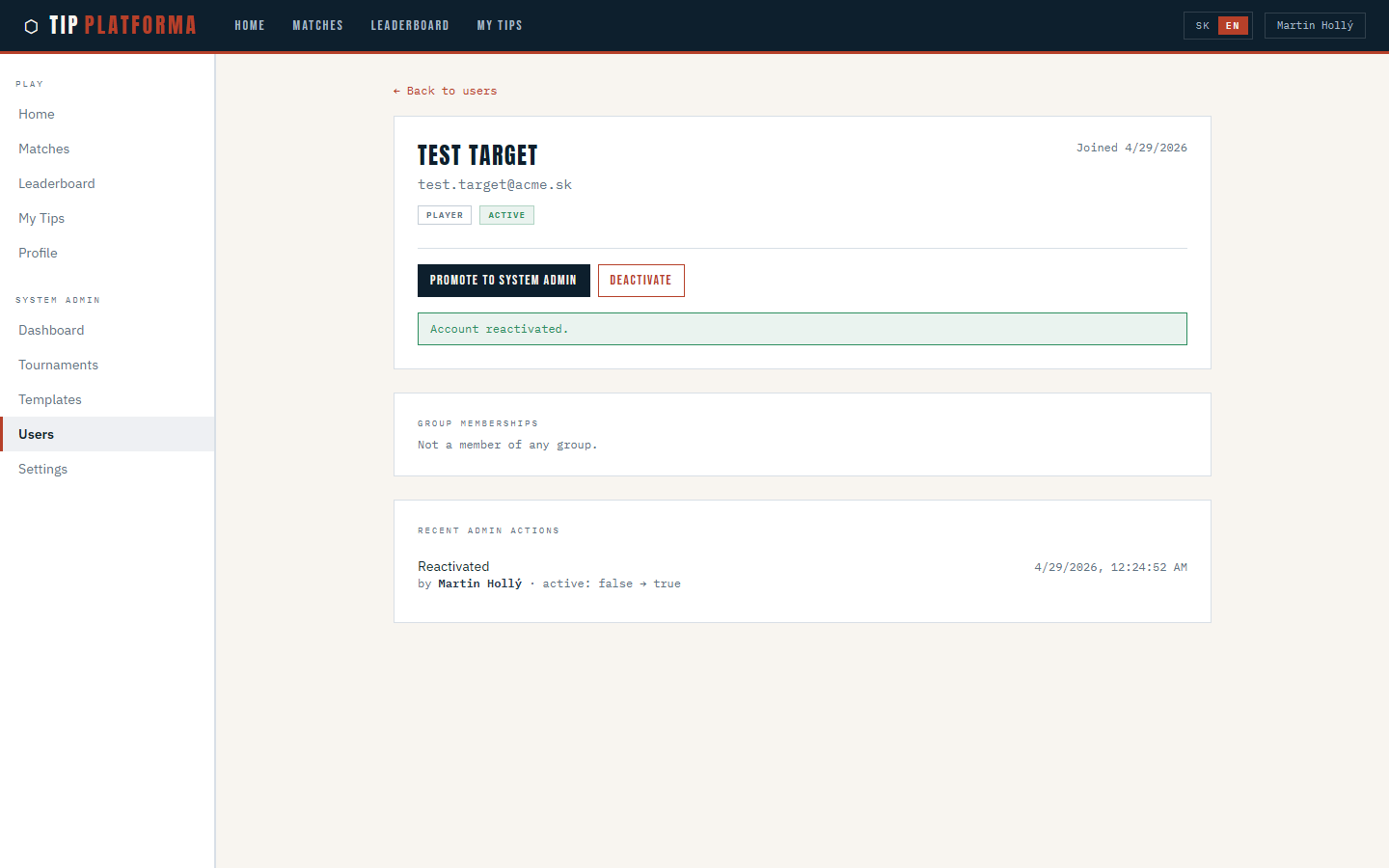
- See the status badge flip back to Active and a success banner
Klikni pre zvacsenie
- Check the Recent admin actions entry shows the reactivation
Klikni pre zvacsenie