Regenerated from
@manual-tagged Playwright tests on 2026-04-28T22:25:03.712Z. Do not edit by hand — every change belongs in a test.
Create a tournament
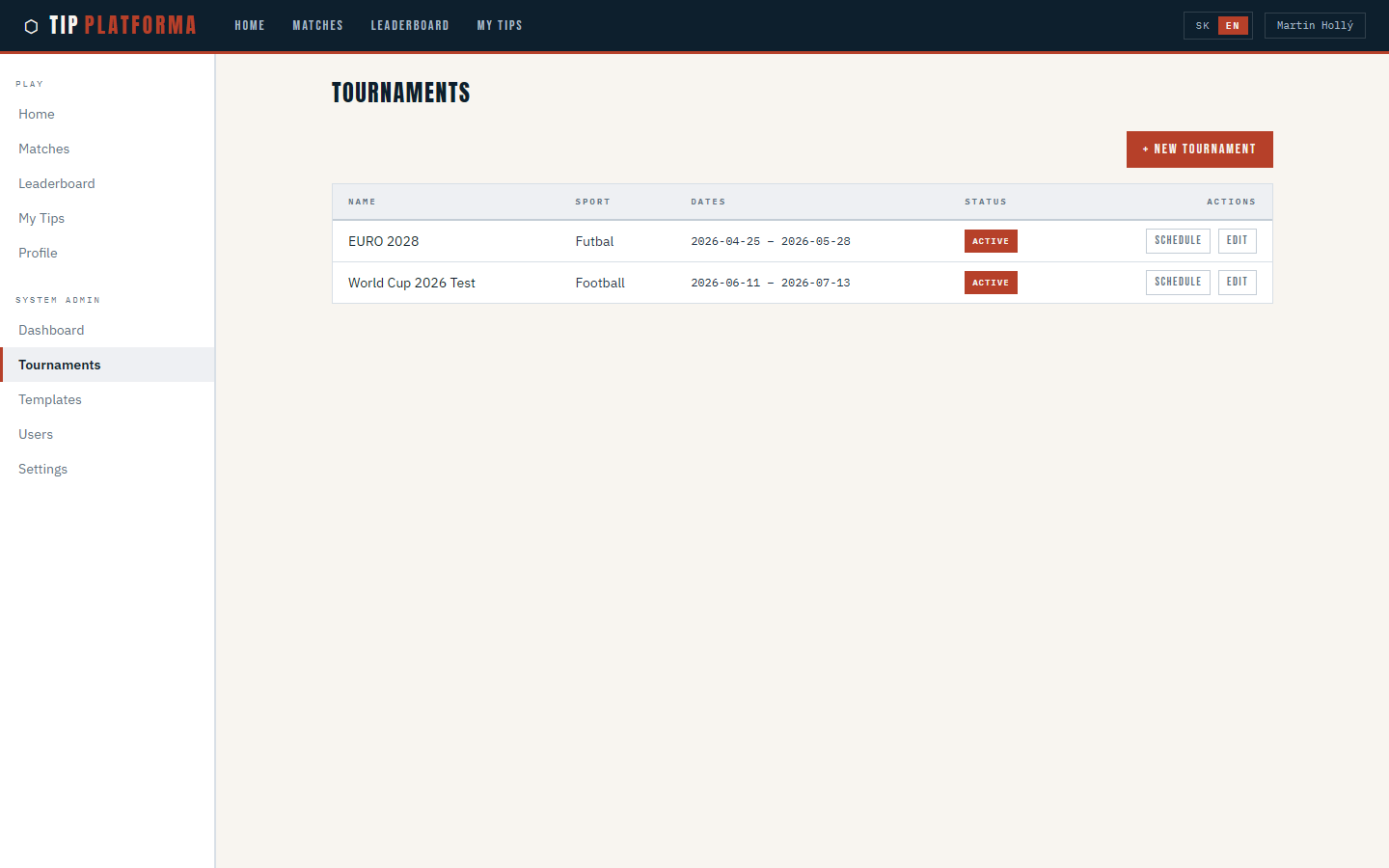
- Open Tournaments from the sidebar.
Klikni pre zvacsenie
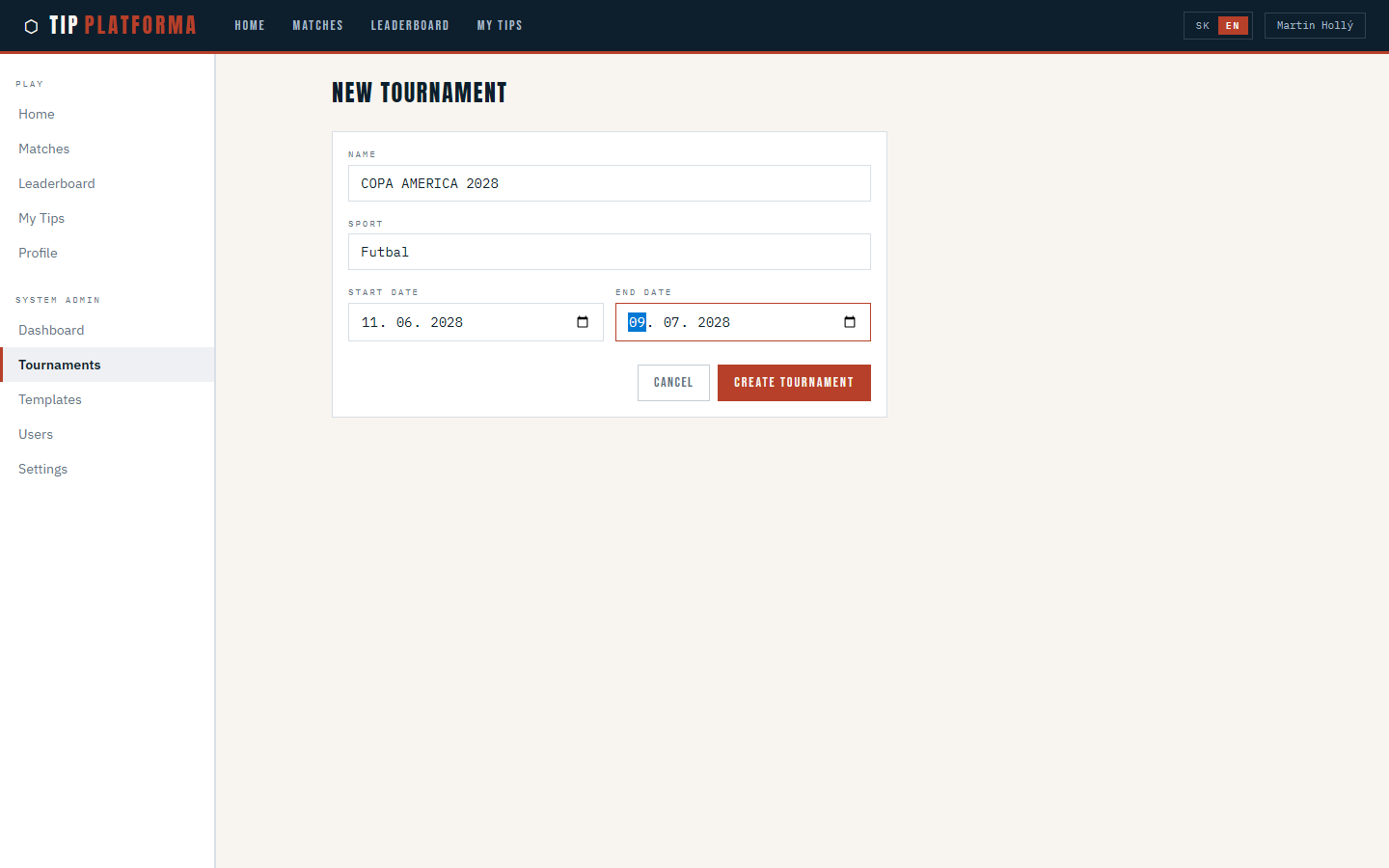
- Start a new tournament.
- Enter the tournament name (COPA AMERICA 2028), sport, start and end dates, and the default scoring template.
Klikni pre zvacsenie
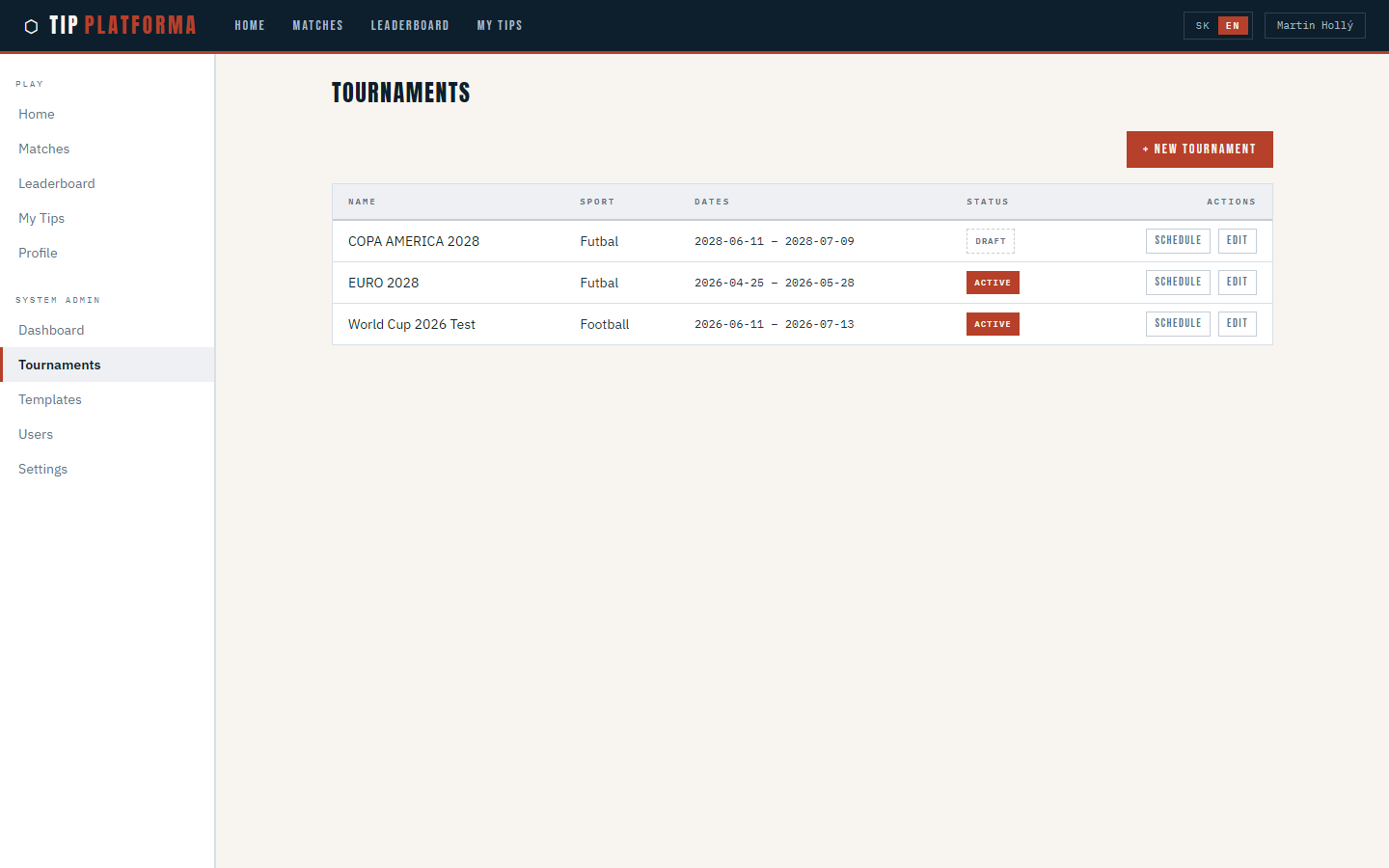
- Save the tournament.
- Confirm the new tournament appears in the list with its dates and status.
Klikni pre zvacsenie
Create a scoring template
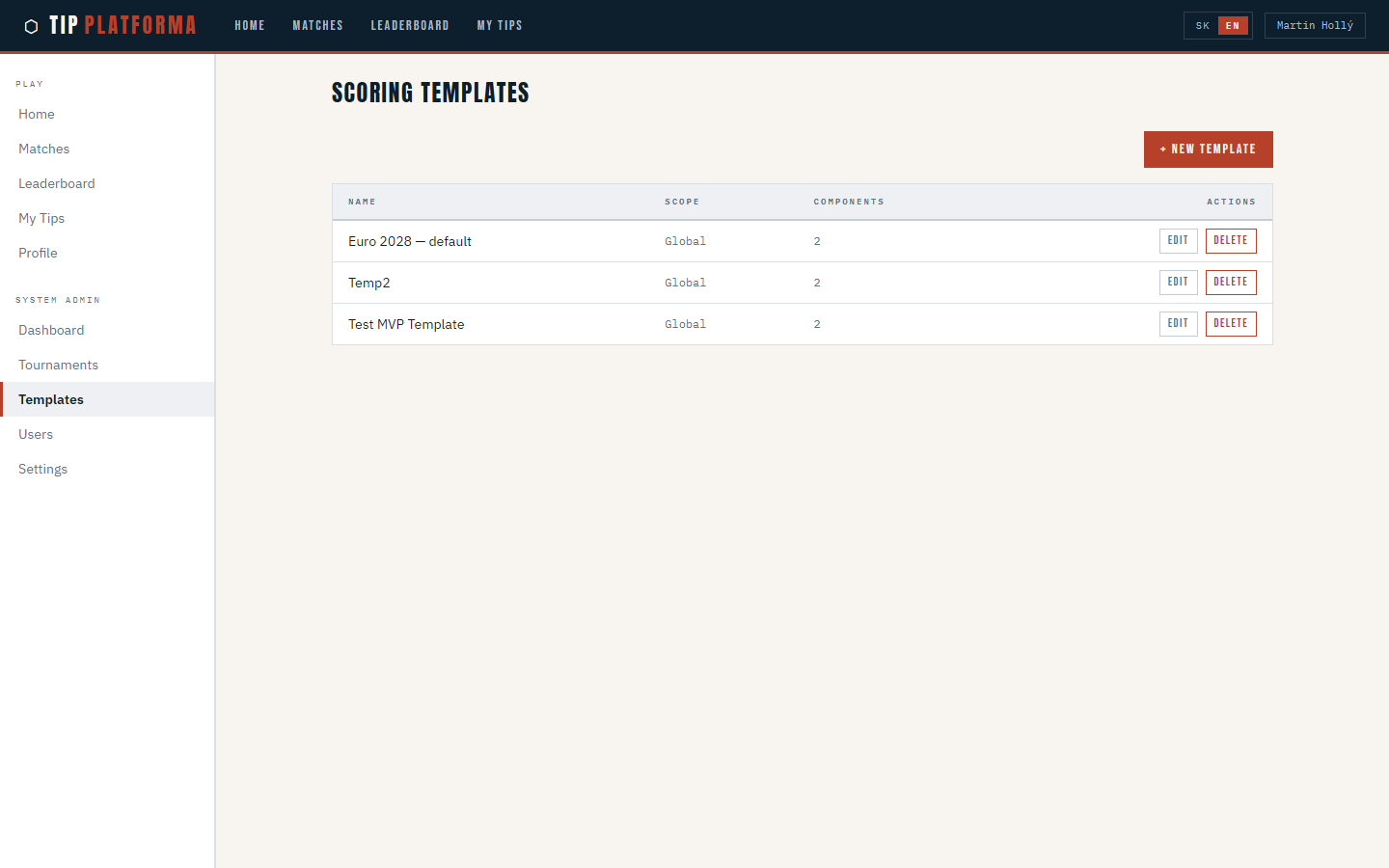
- Open Templates from the sidebar.
Klikni pre zvacsenie
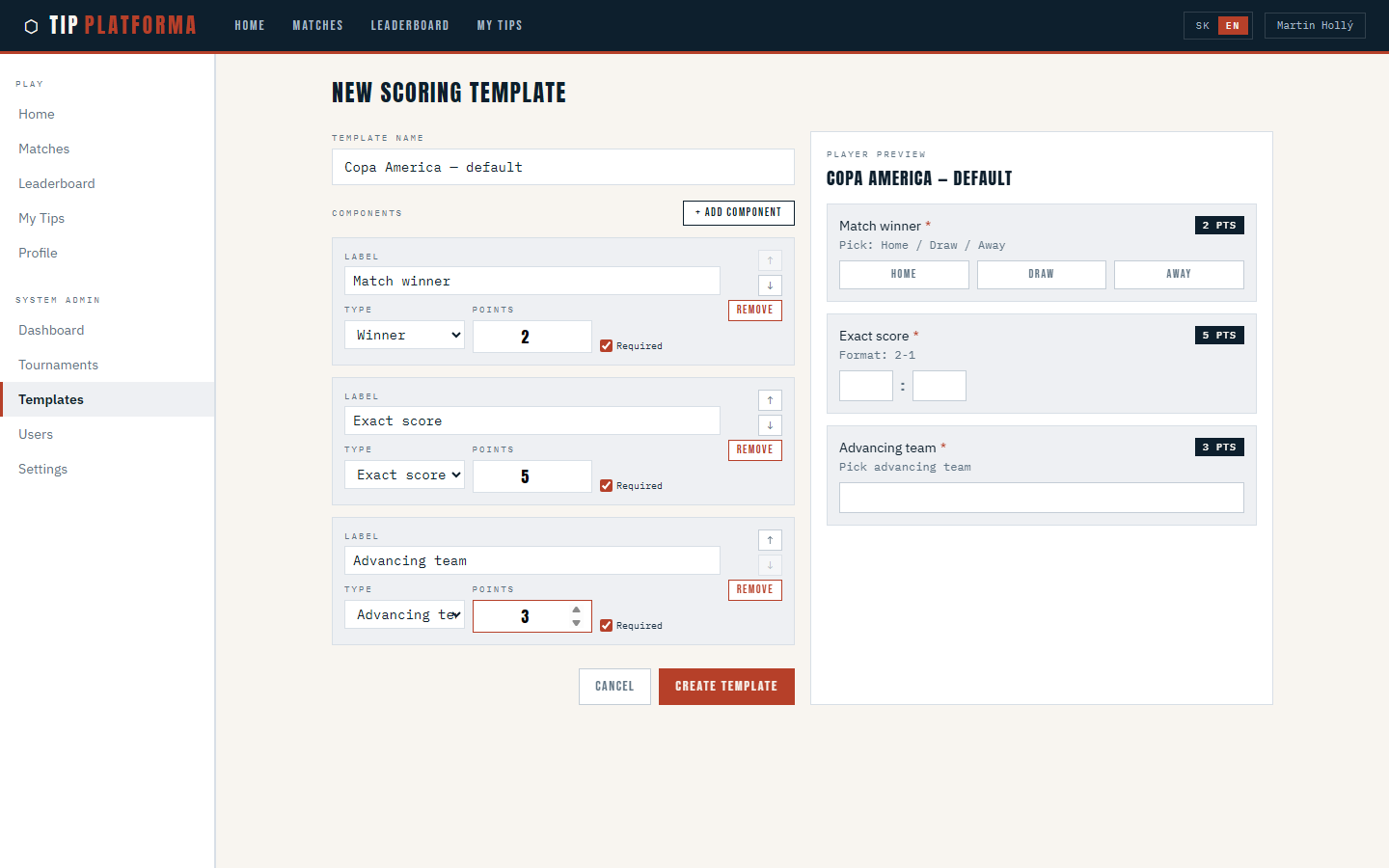
- Start a new scoring template.
- Give the template a name (Copa America — default).
- Enable the winner component and set its point value.
- Enable the exact score component and set its point value.
- Enable the advancing team component for knockouts and set its point value.
Klikni pre zvacsenie
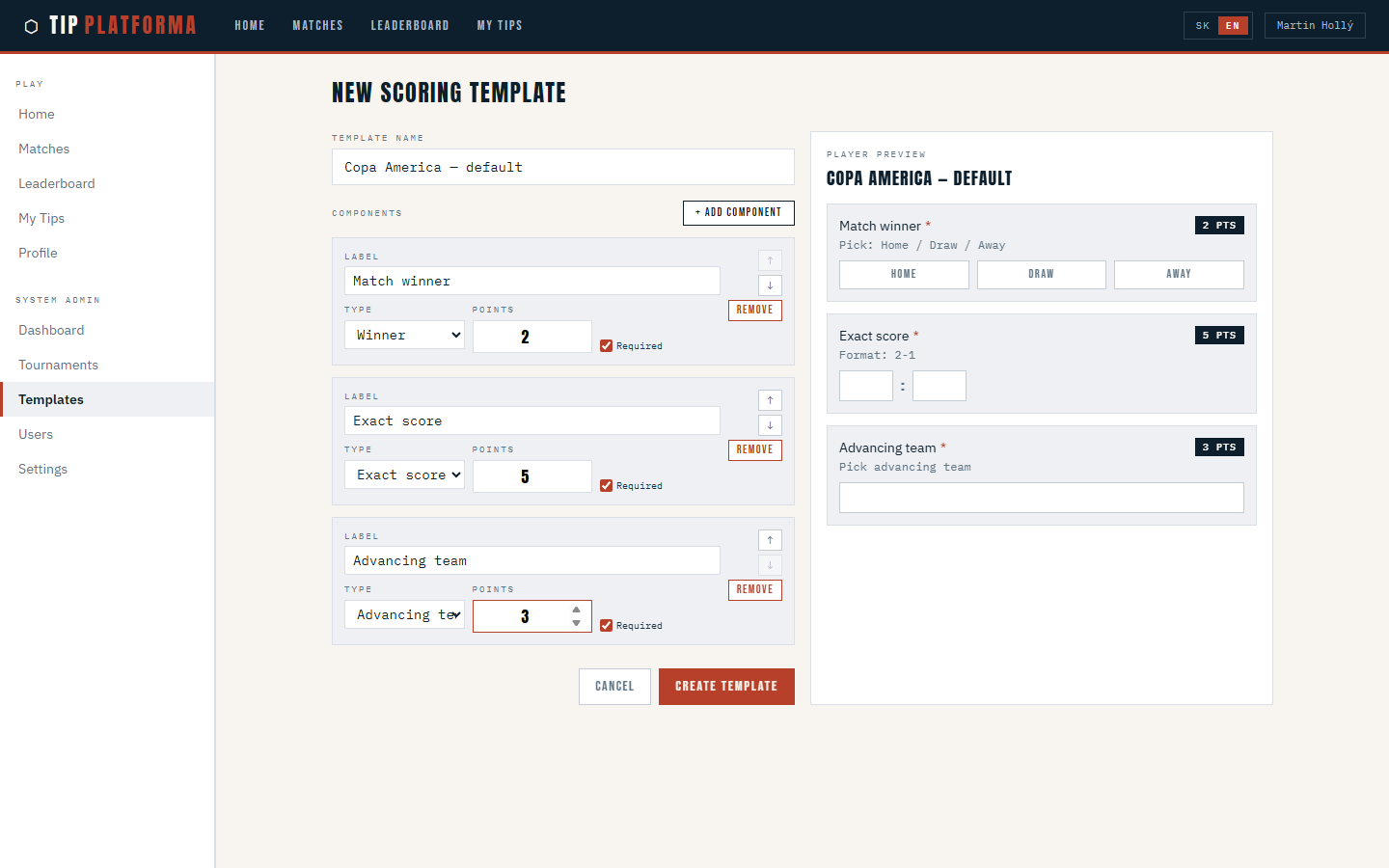
- Confirm the live preview reflects my three components.
Klikni pre zvacsenie
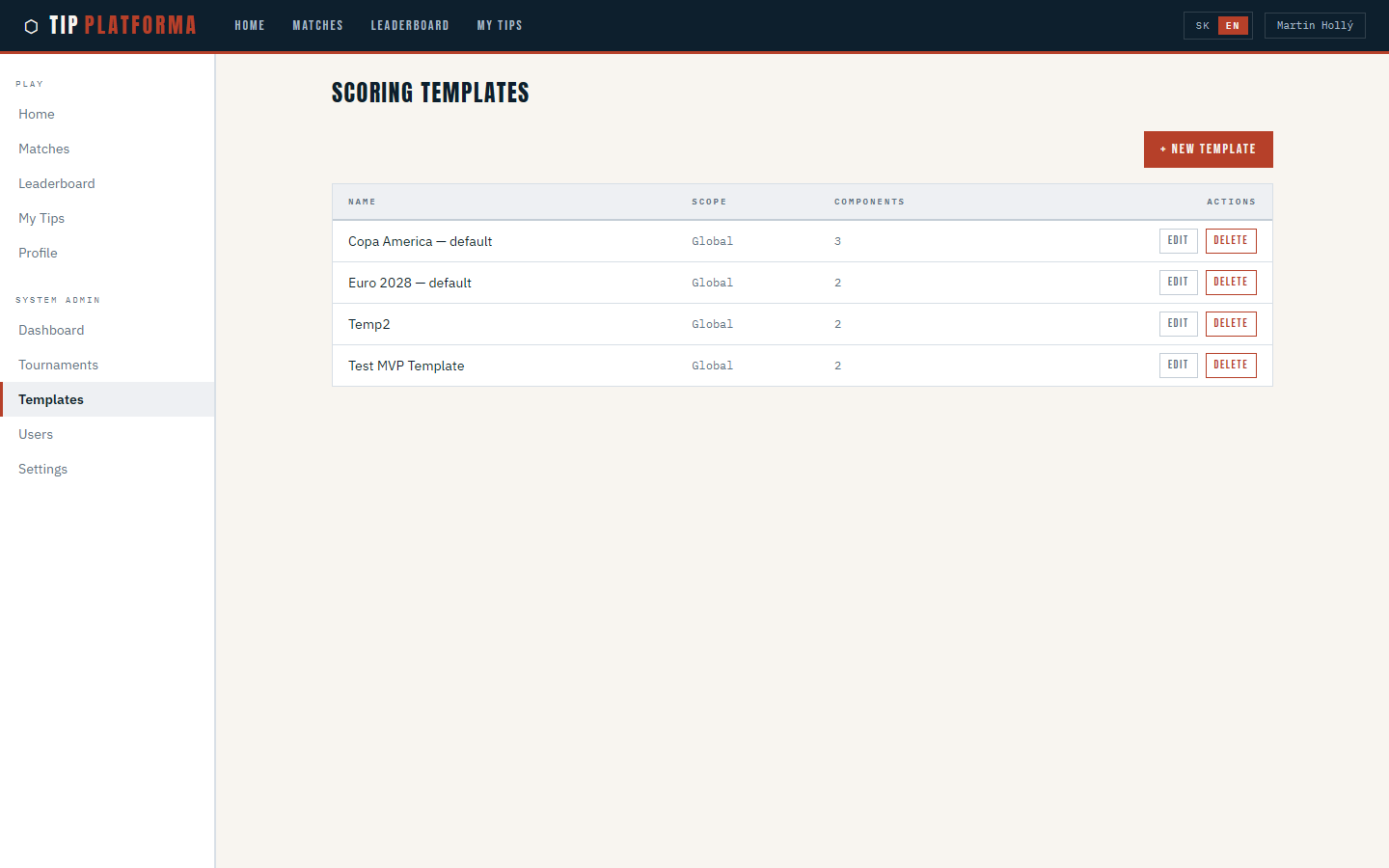
- Save the template.
Klikni pre zvacsenie
Schedule match with round autocomplete
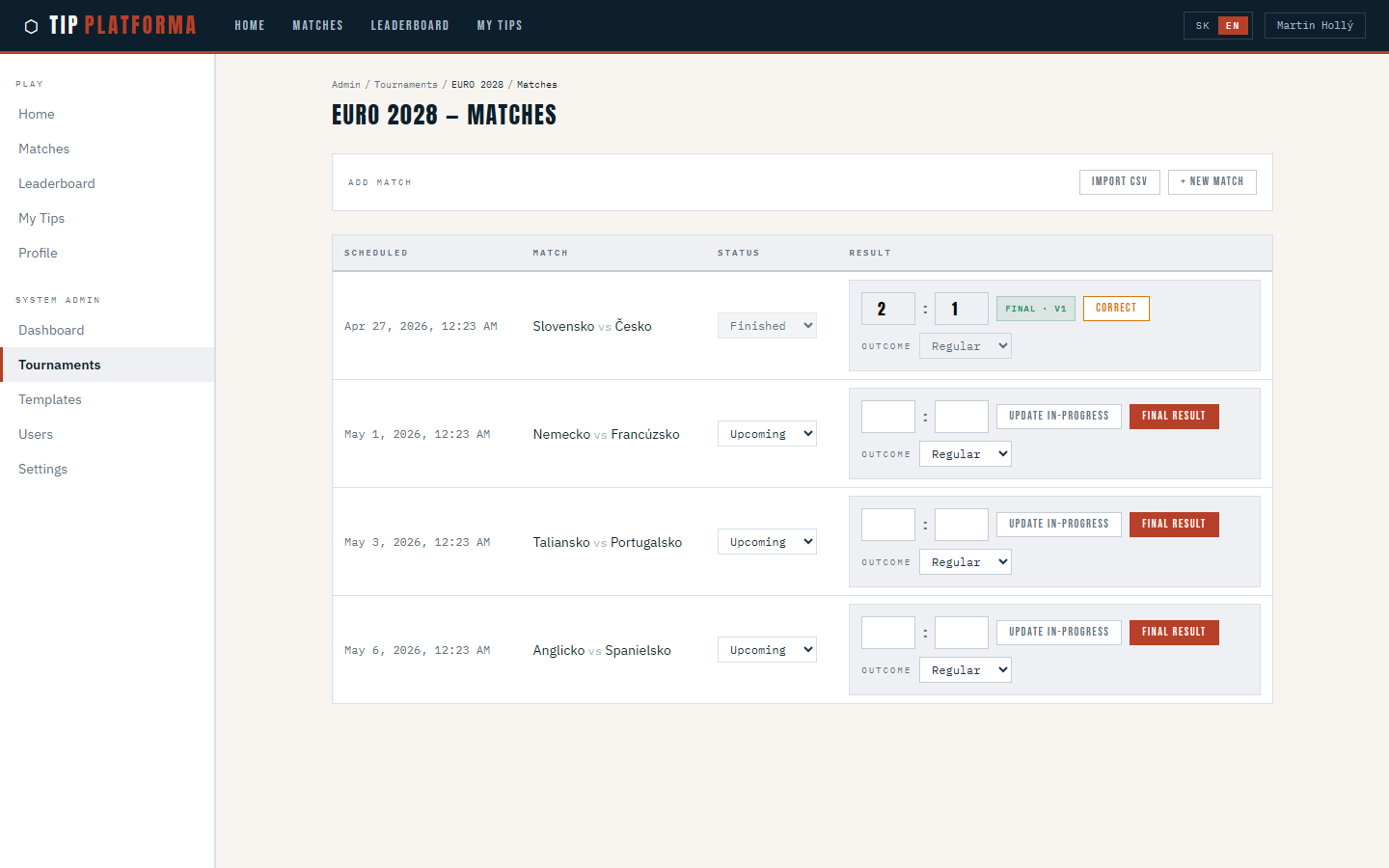
- Open the tournament's match schedule page.
Klikni pre zvacsenie
- Start a new match.
- Pick the home team and away team, and enter the scheduled kickoff.
- Choose the scoring template for this match.
- Start typing in the Round field and see existing rounds suggested.
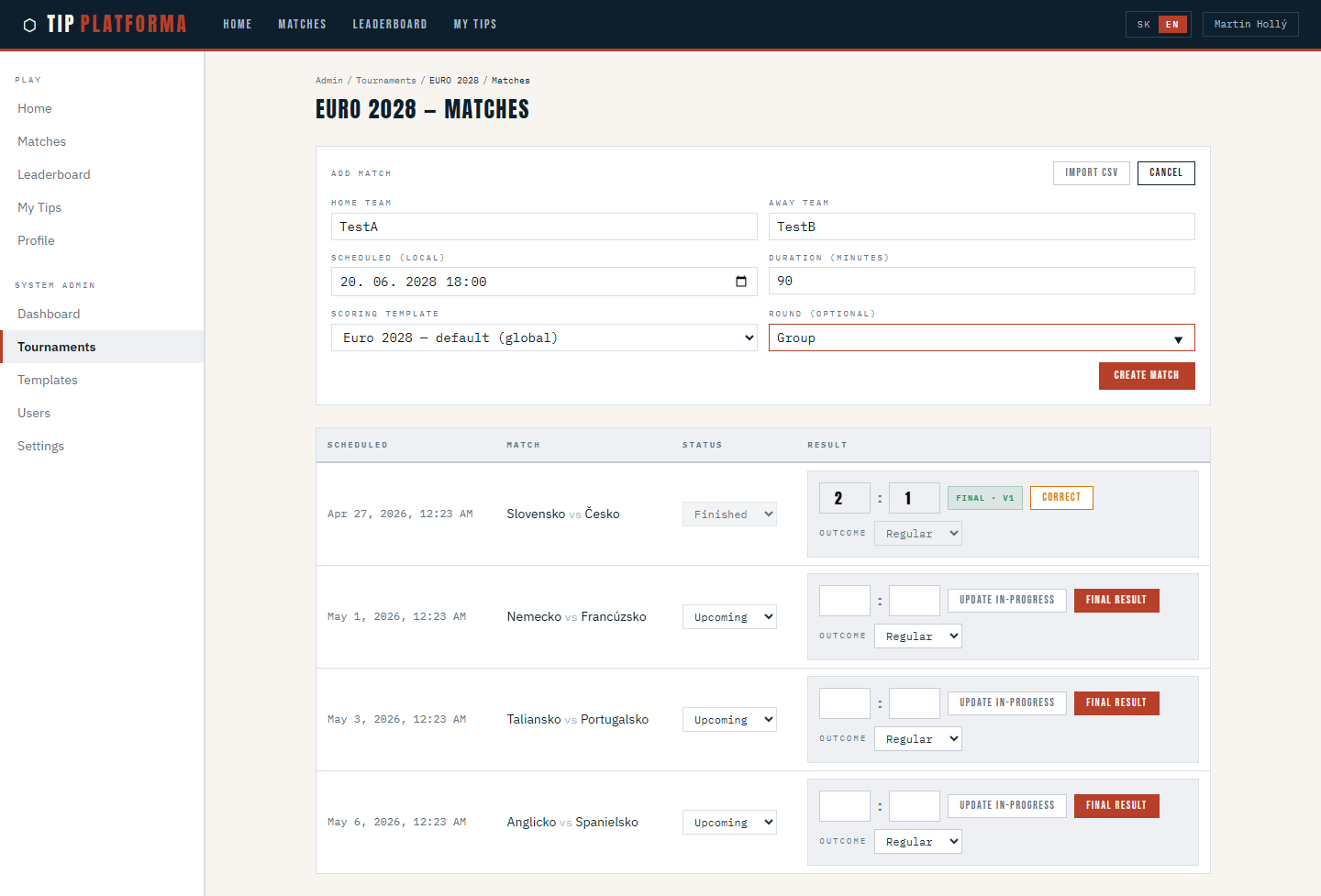
Klikni pre zvacsenie
- For this new match, enter a fresh round label (Osemfinále) instead.
- Save the match and confirm it appears on the schedule with the correct round.
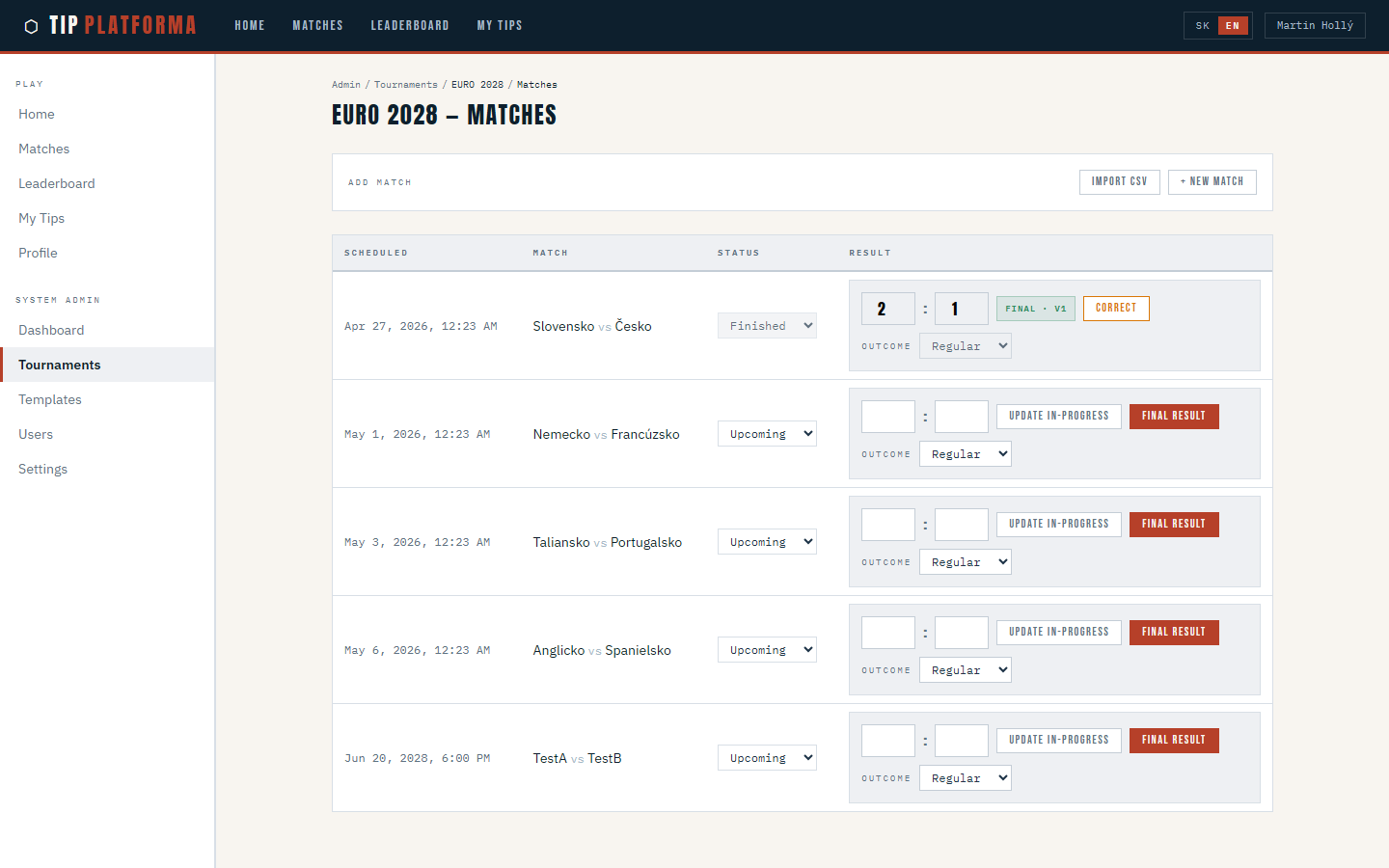
Klikni pre zvacsenie
- Start another new match and confirm the fresh round label is now offered as a suggestion.
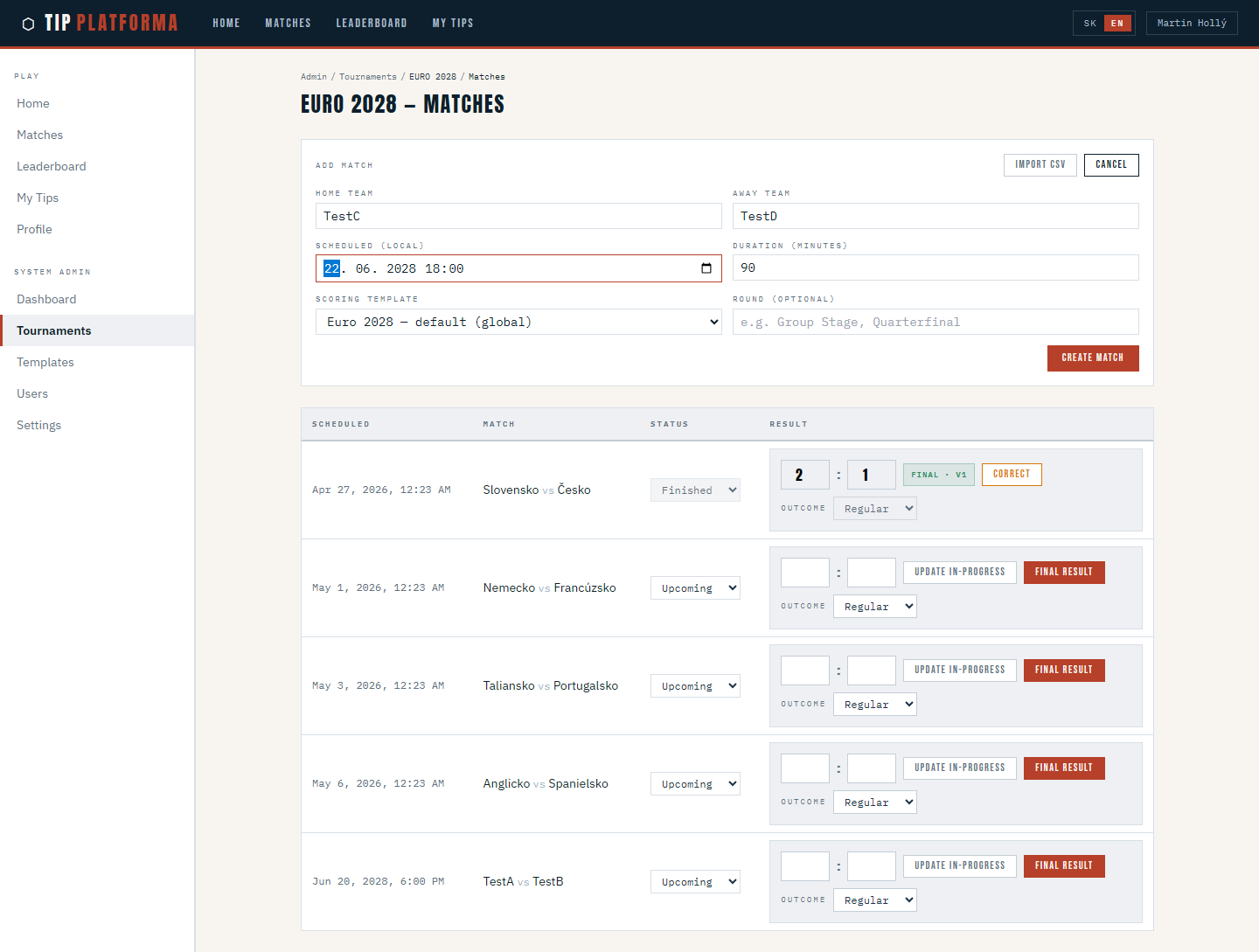
Klikni pre zvacsenie
Enter final match result
- Open the tournament's match schedule page.
- Find the match that just finished.
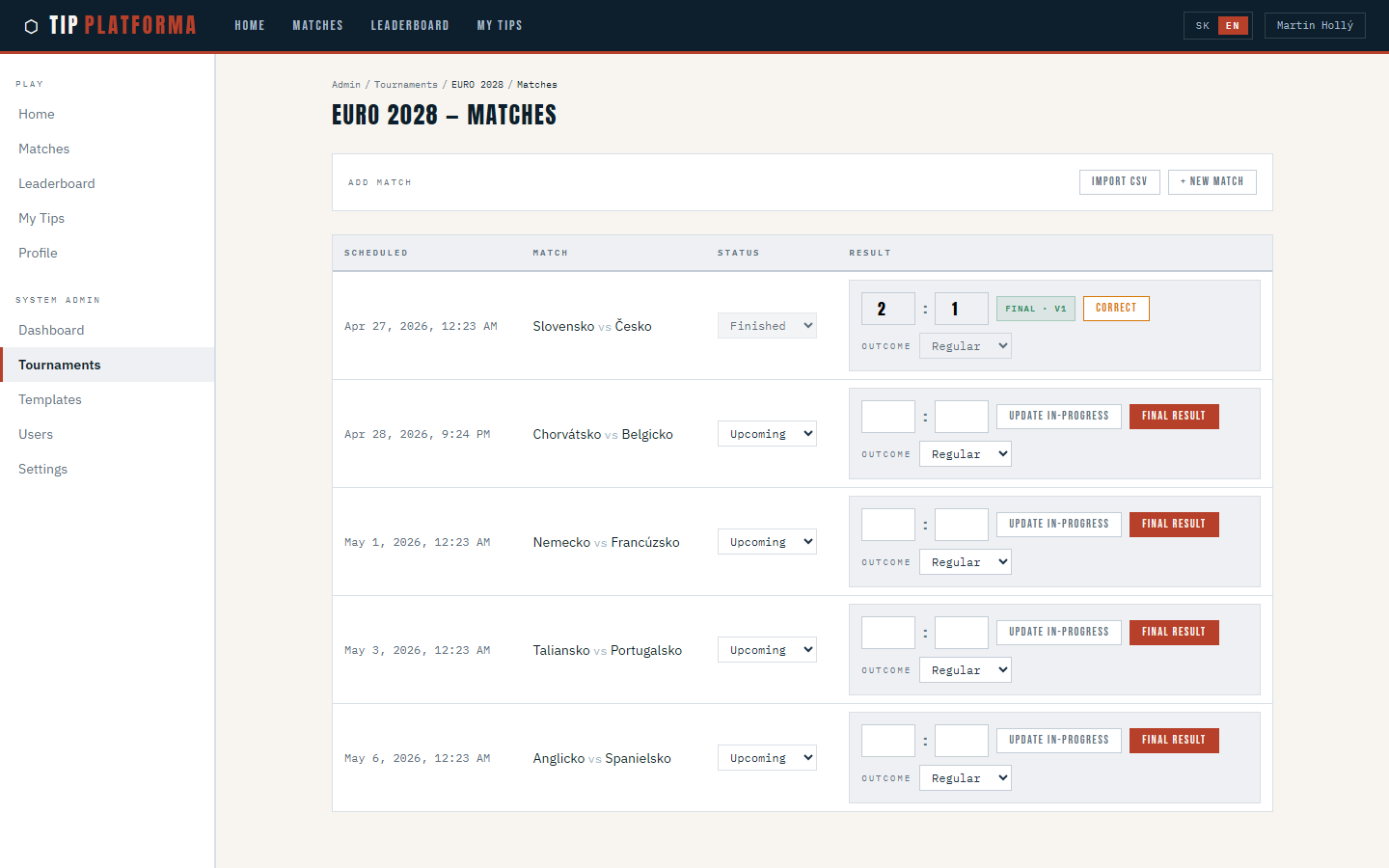
Klikni pre zvacsenie
- Enter the final score in the result fields.
- Submit the final result and acknowledge the confirmation warning about scoring and locking.
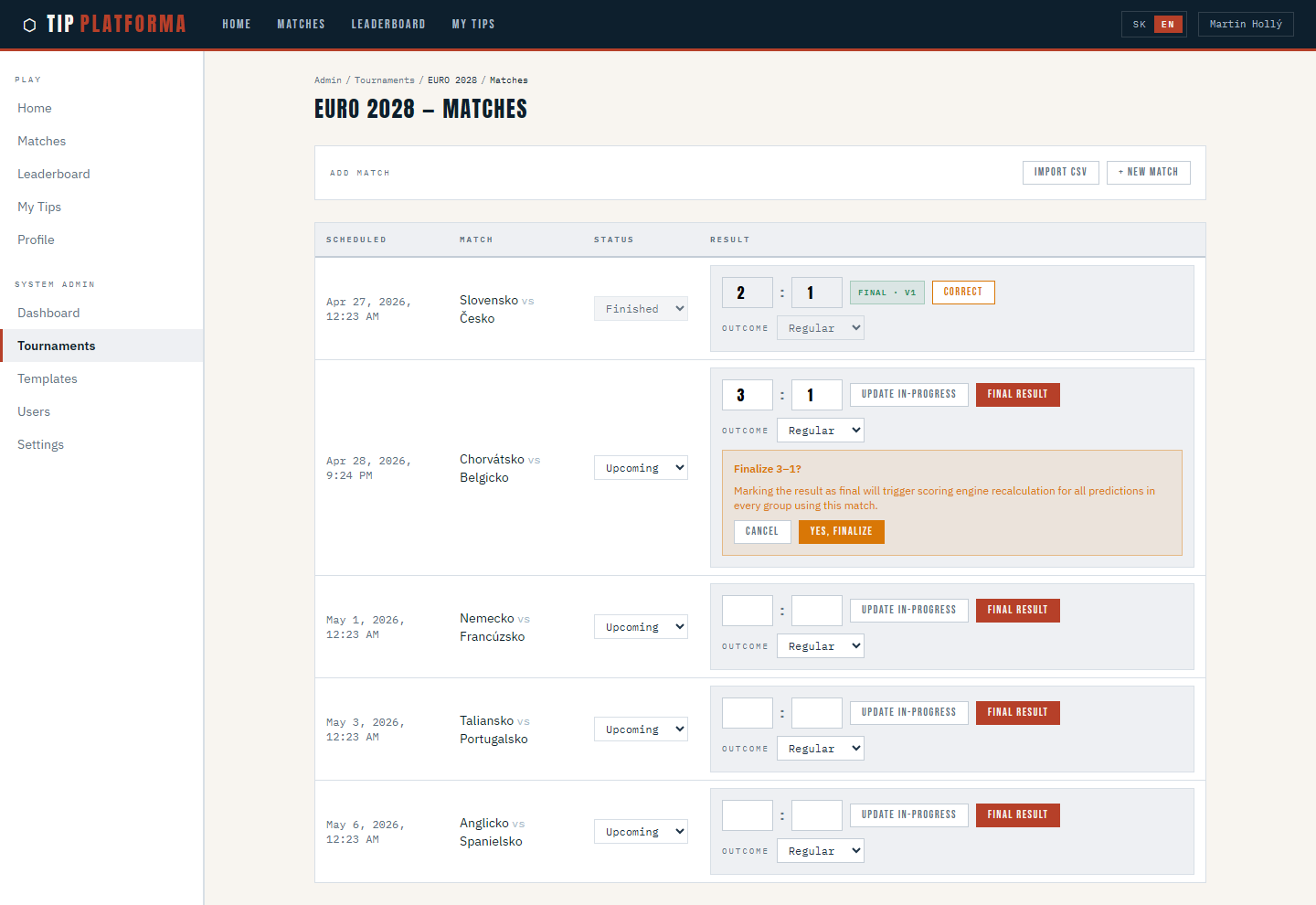
Klikni pre zvacsenie
- Confirm the match now shows a Final · v1 badge.
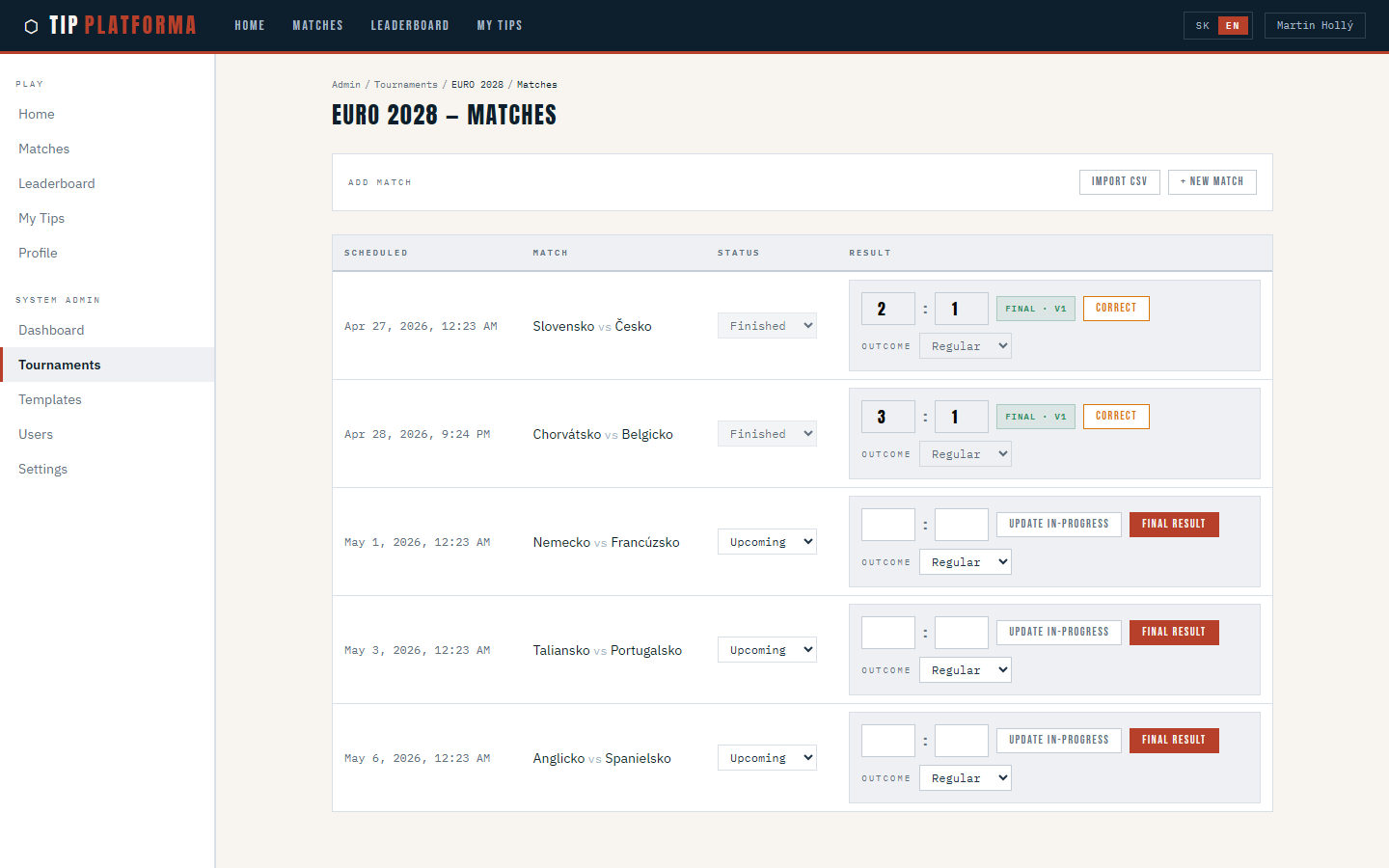
Klikni pre zvacsenie
- Check the admin dashboard’s missing-results counter has dropped by one.
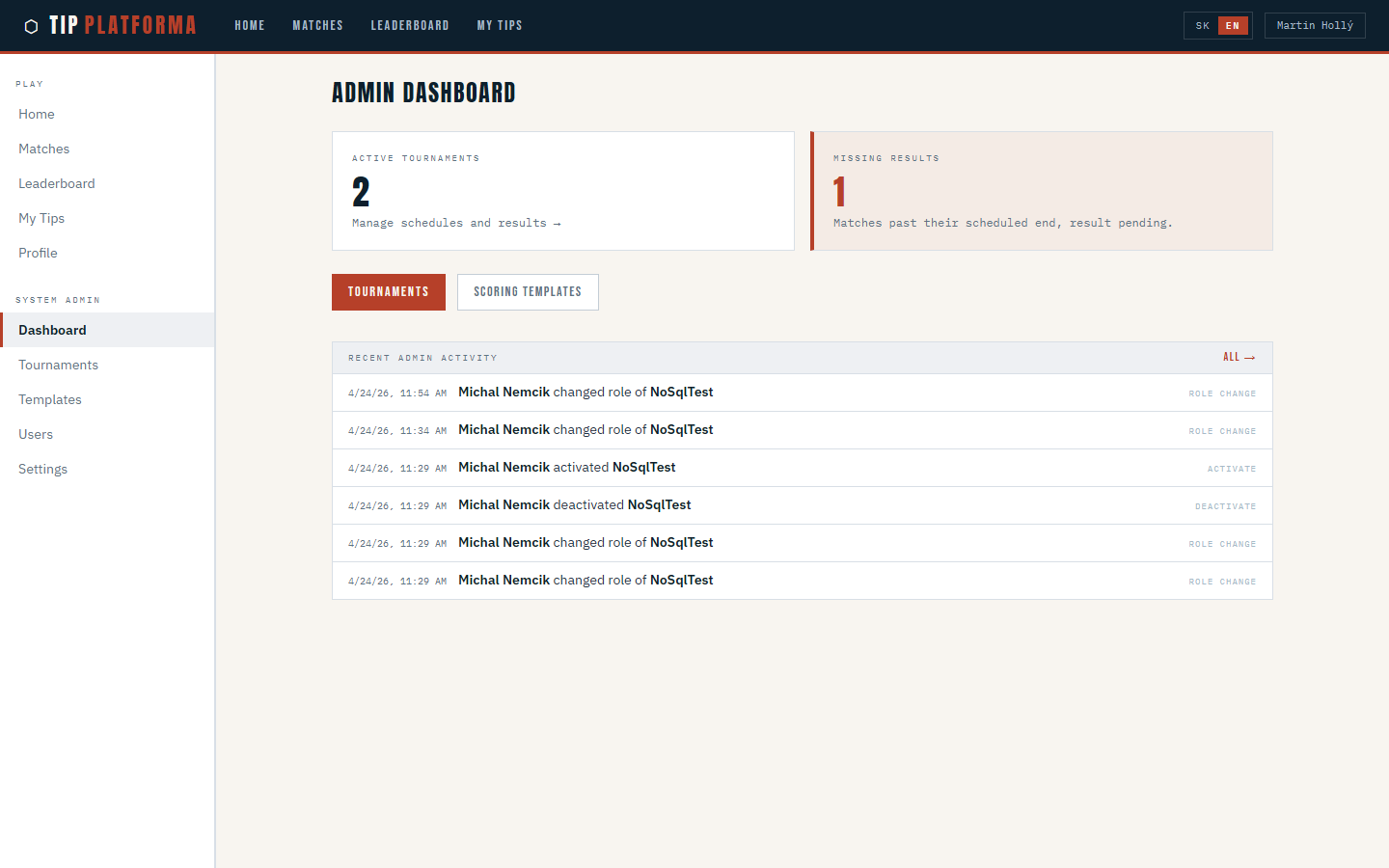
Klikni pre zvacsenie
Read admin dashboard
- Open the admin dashboard from the sidebar.
- Read the active-tournaments count card.
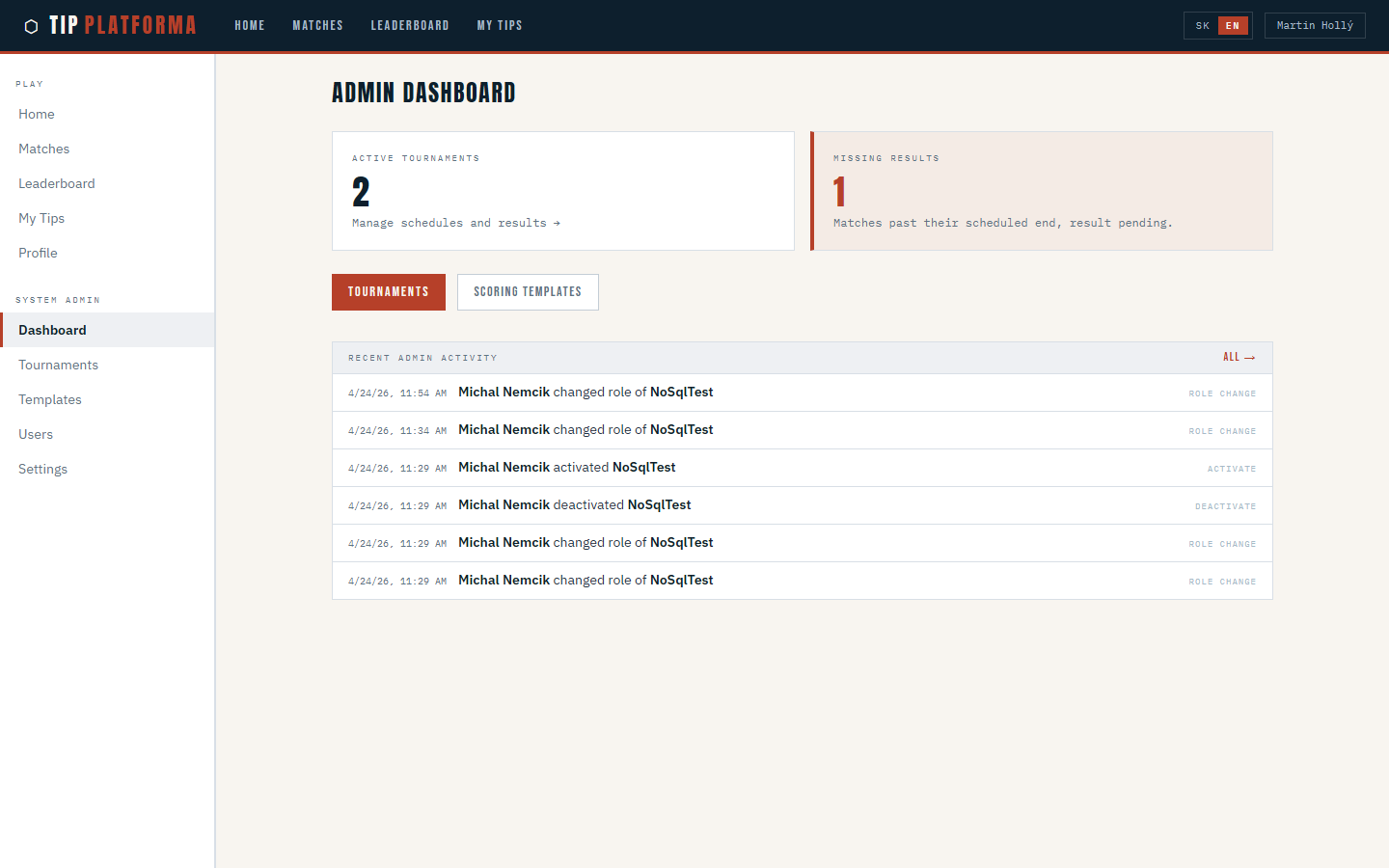
Klikni pre zvacsenie
- Read the missing-results count card.
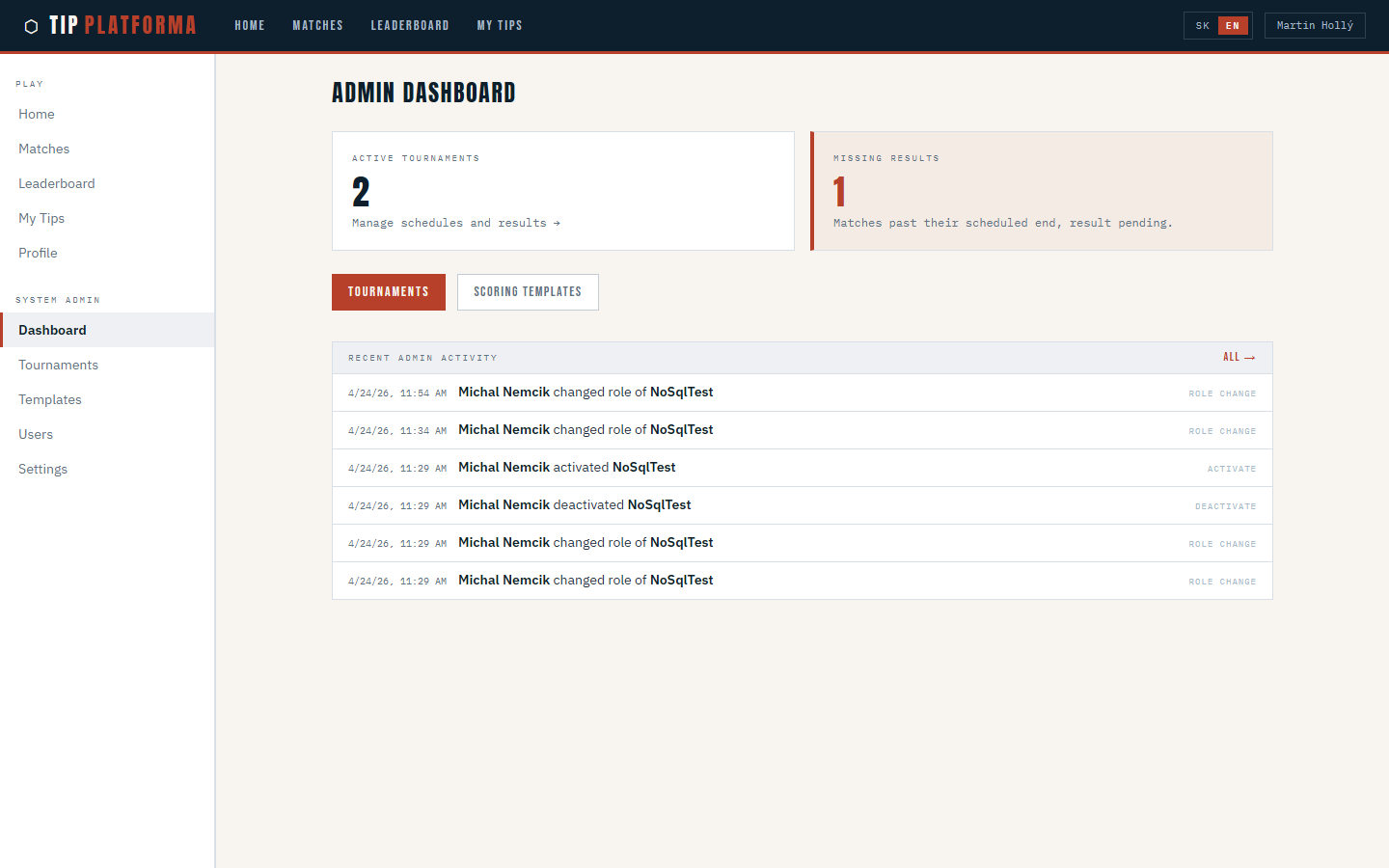
Klikni pre zvacsenie
- Use the quick-link cards to jump into Tournaments.
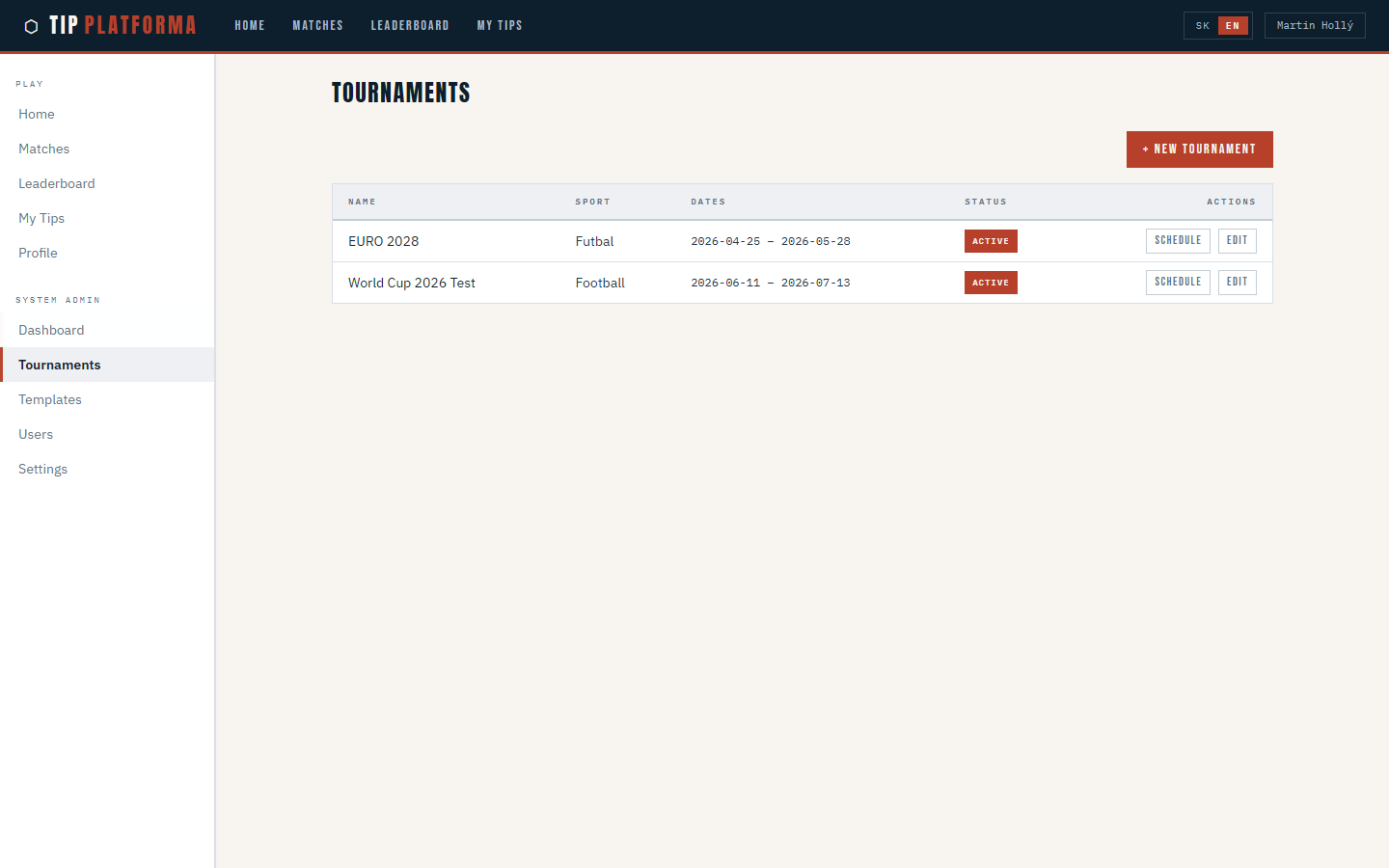
Klikni pre zvacsenie
- Jump into Templates from the dashboard too.
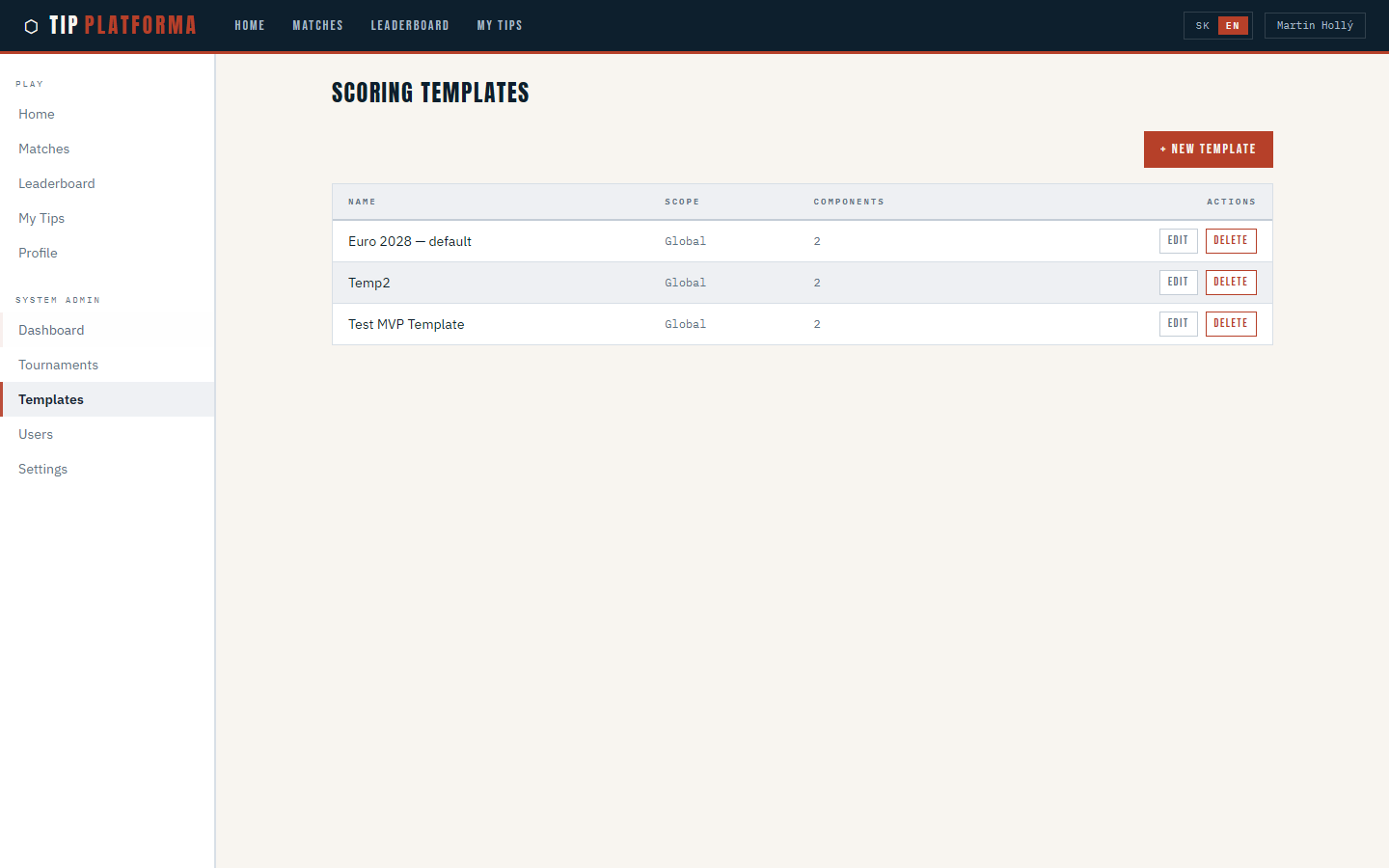
Klikni pre zvacsenie